How to enable the Return Link or Embed options in LTI 1.3 picker



Configuration in Canvas to enable the Return Link or Embed options in LTI 1.3 picker:
- Edit the registered LTI Tool in Canvas
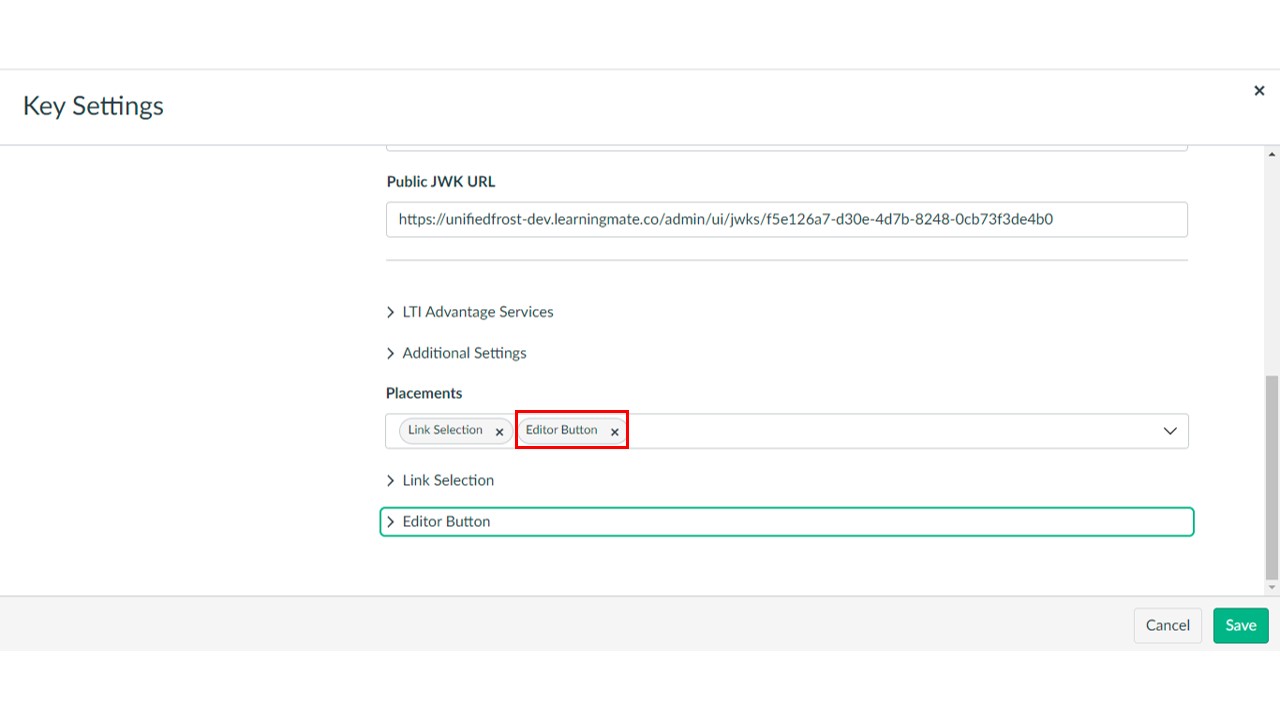
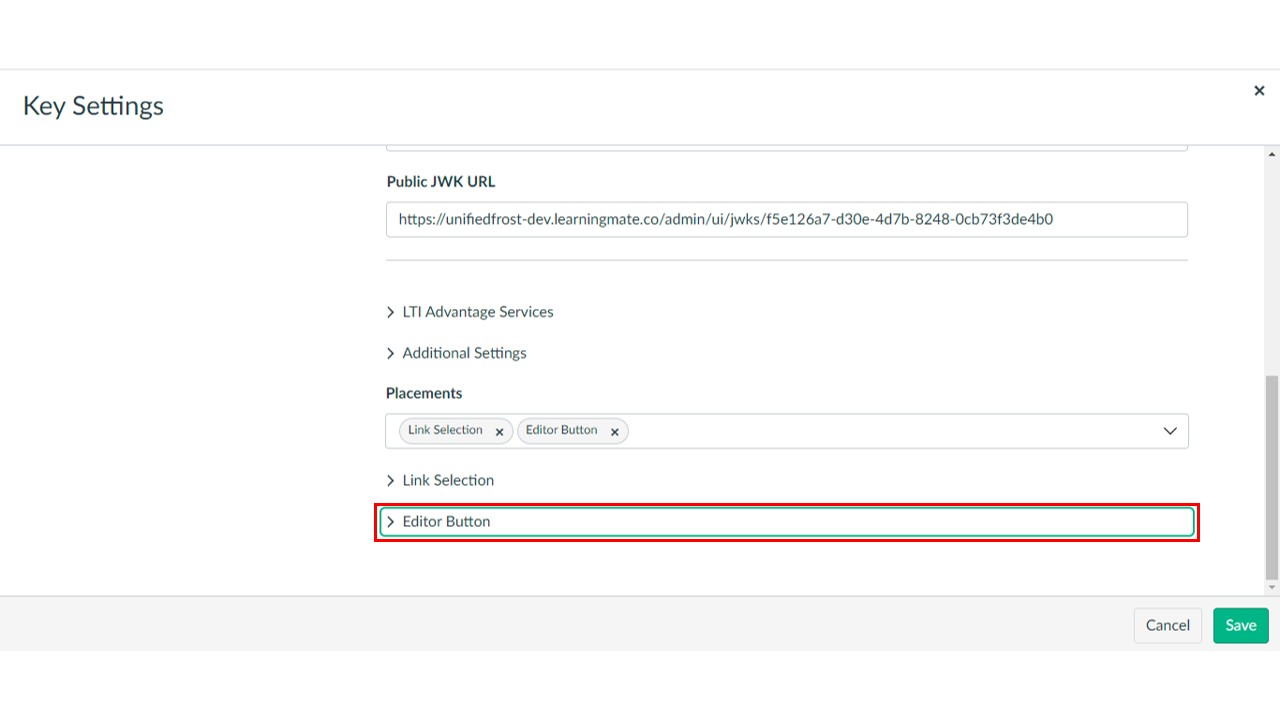
- Add Editor Button in Placements
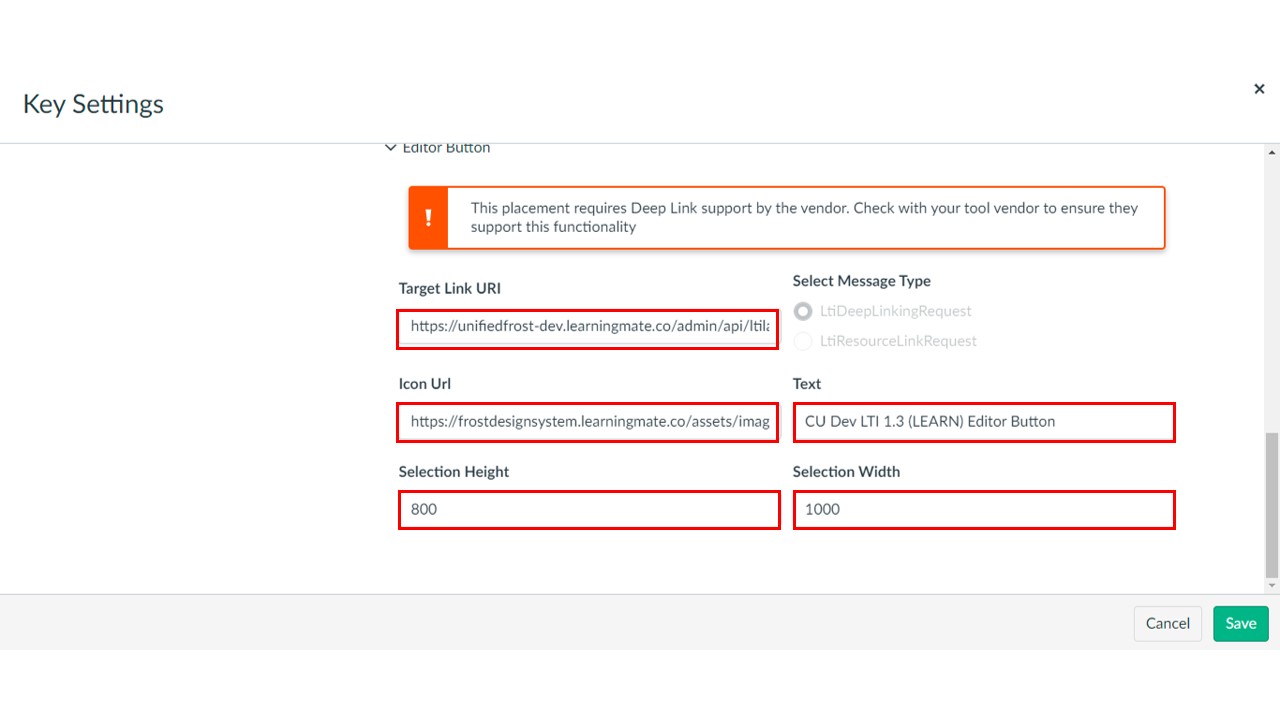
- Editor Button Configuration:
- Target Link URI: – Copy LAUNCH URL from LTI Platform table in admin
- Select Message Type: – LtiDeepLinkingRequest (Default)
- Icon URL - URL of the icon to be displayed for the Editor Button
- Text - Name of the Editor Button
- Selection Width and Height: – Optional
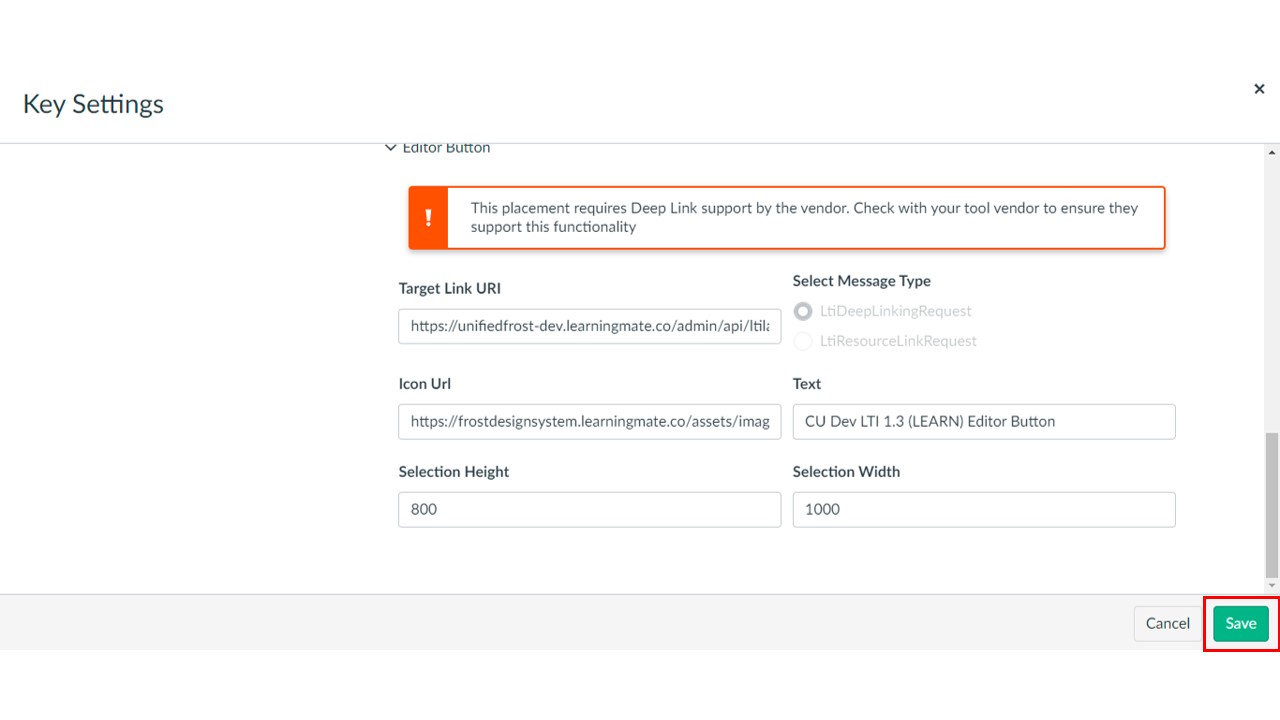
- Click Save
Embed LOR Objects to the Course using Canvas Editor
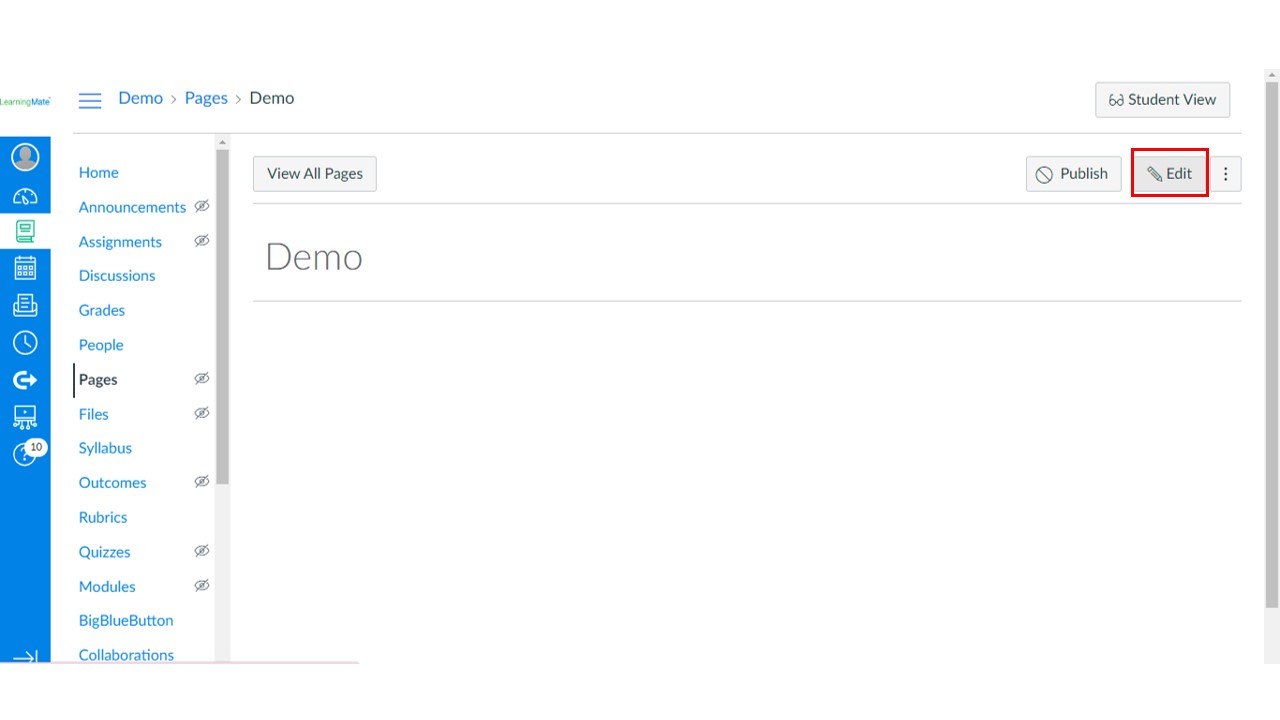
- Navigate to the Course in LMS
- Edit or add a new page
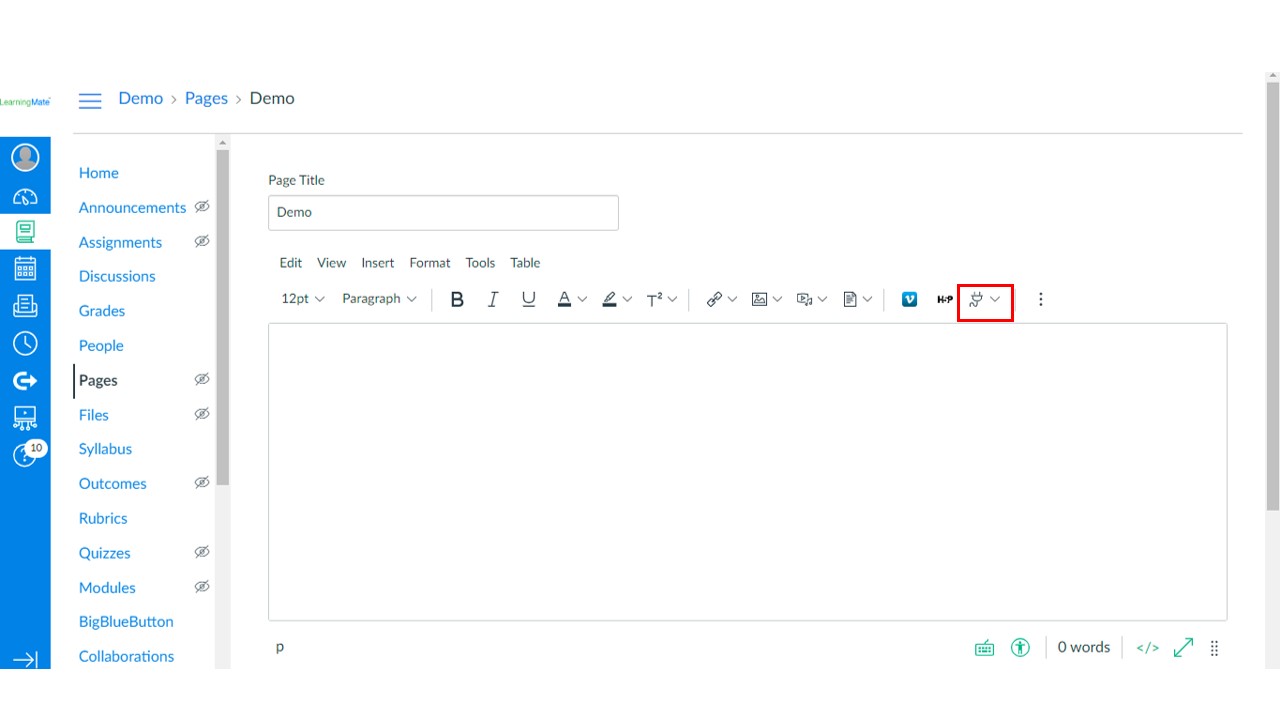
- Click Apps
- Select the configured Editor Button app
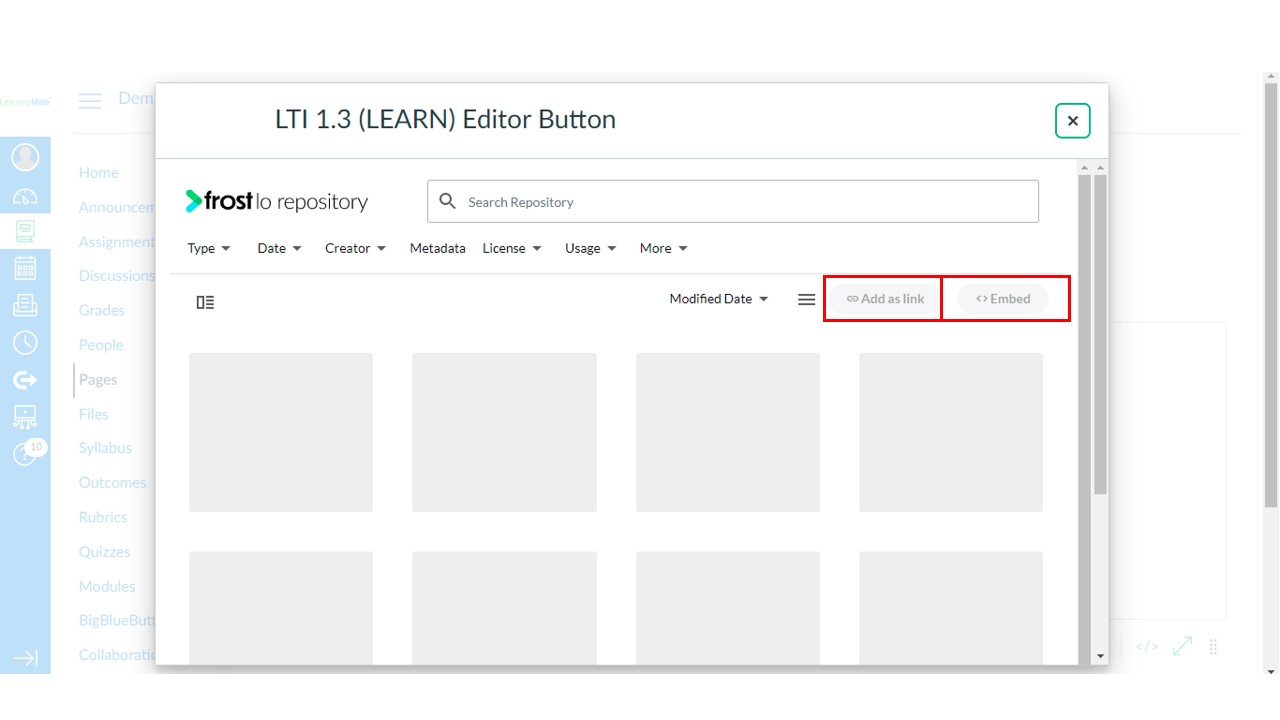
- Select an object from the LTI Picker displayed
- Click Embed, to embed the object in the editor.
- Alternatively, to embed the object as a link, click Add as link
- Click Save