How to export a course from D2L LMS
The best LMS software for online learning is Brightspace, created by D2L. It lets you adapt the experience to meet the needs of educators and learners—irrespective of their location. It allows University/College faculties to author courses in Frost and distribute in D2L LMS (Frost—D2L Export). Alternatively, it also allows University/College faculties to bring an already authored content in D2L to Frost (D2L—Frost Import).
To export a course from D2L LMS:
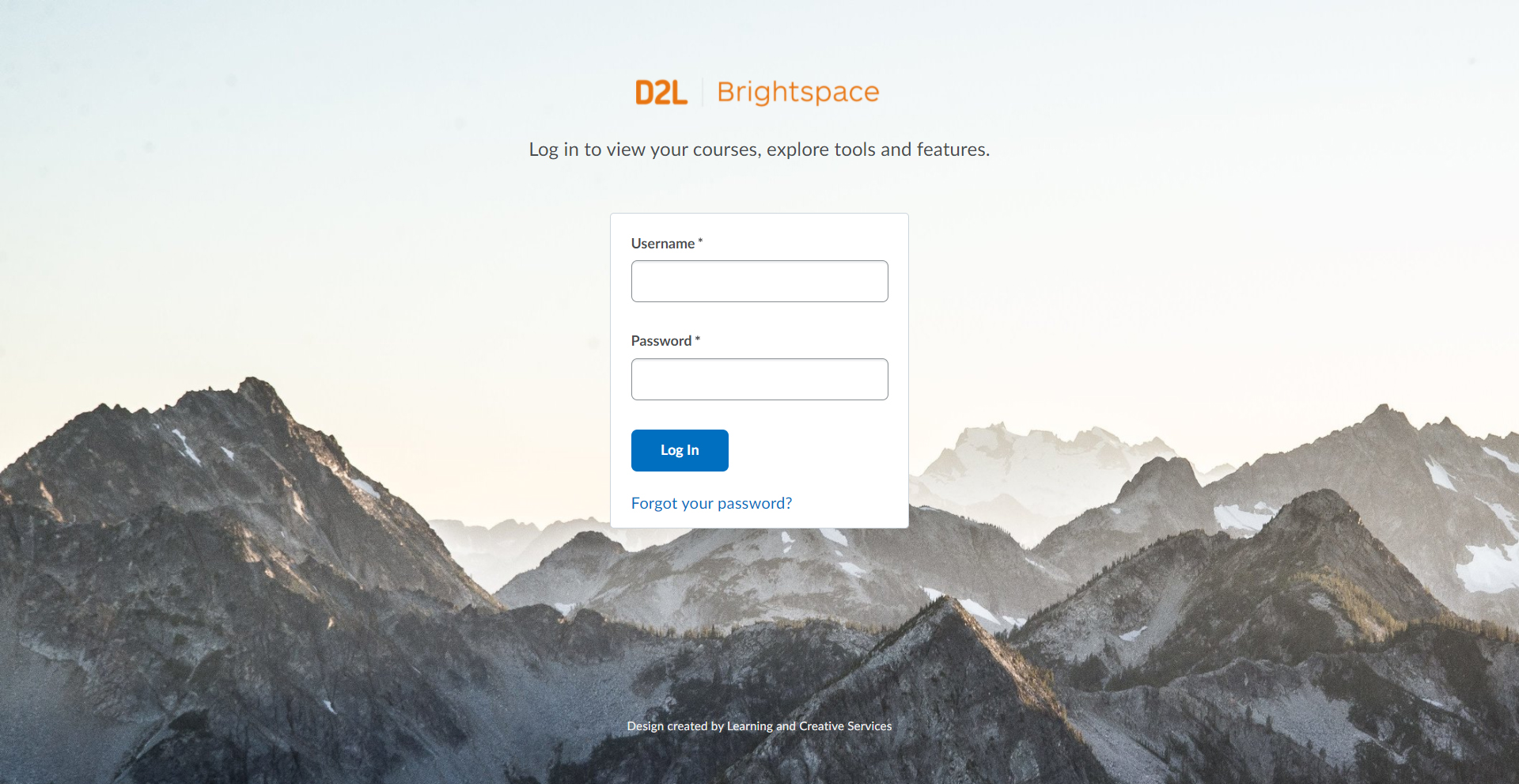
- Login into D2L.
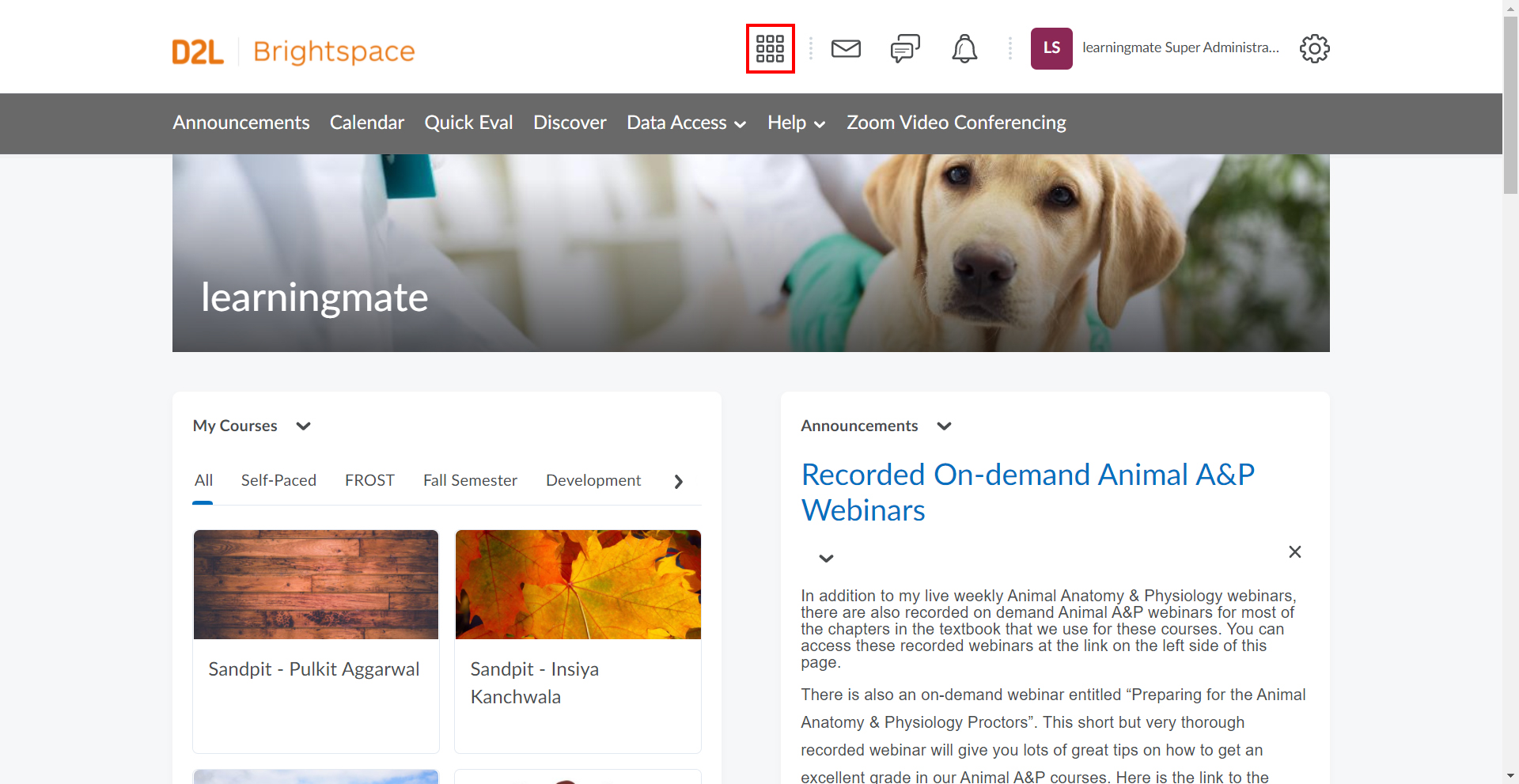
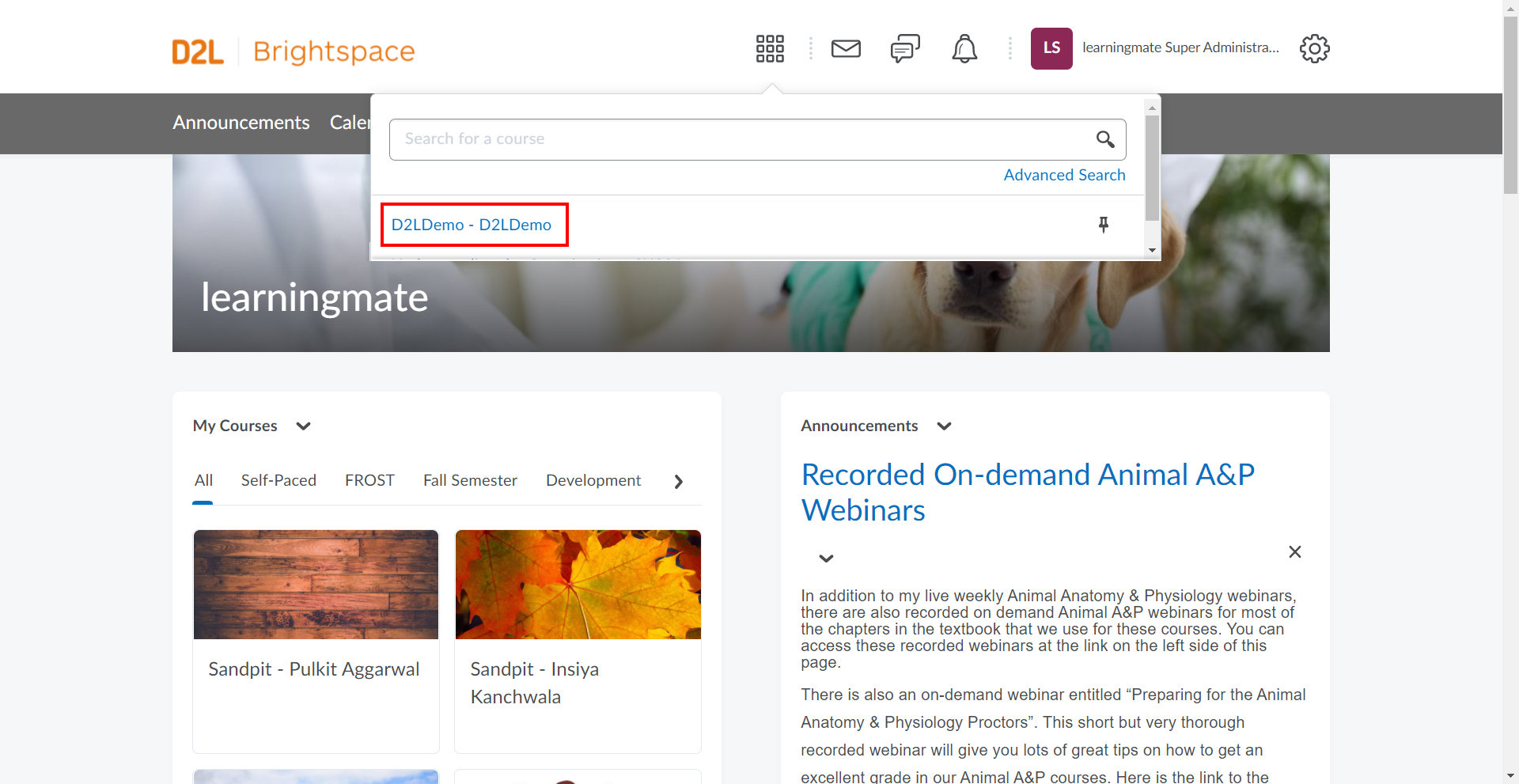
- Click the Courses icon (grid of nine boxes) and select a course.
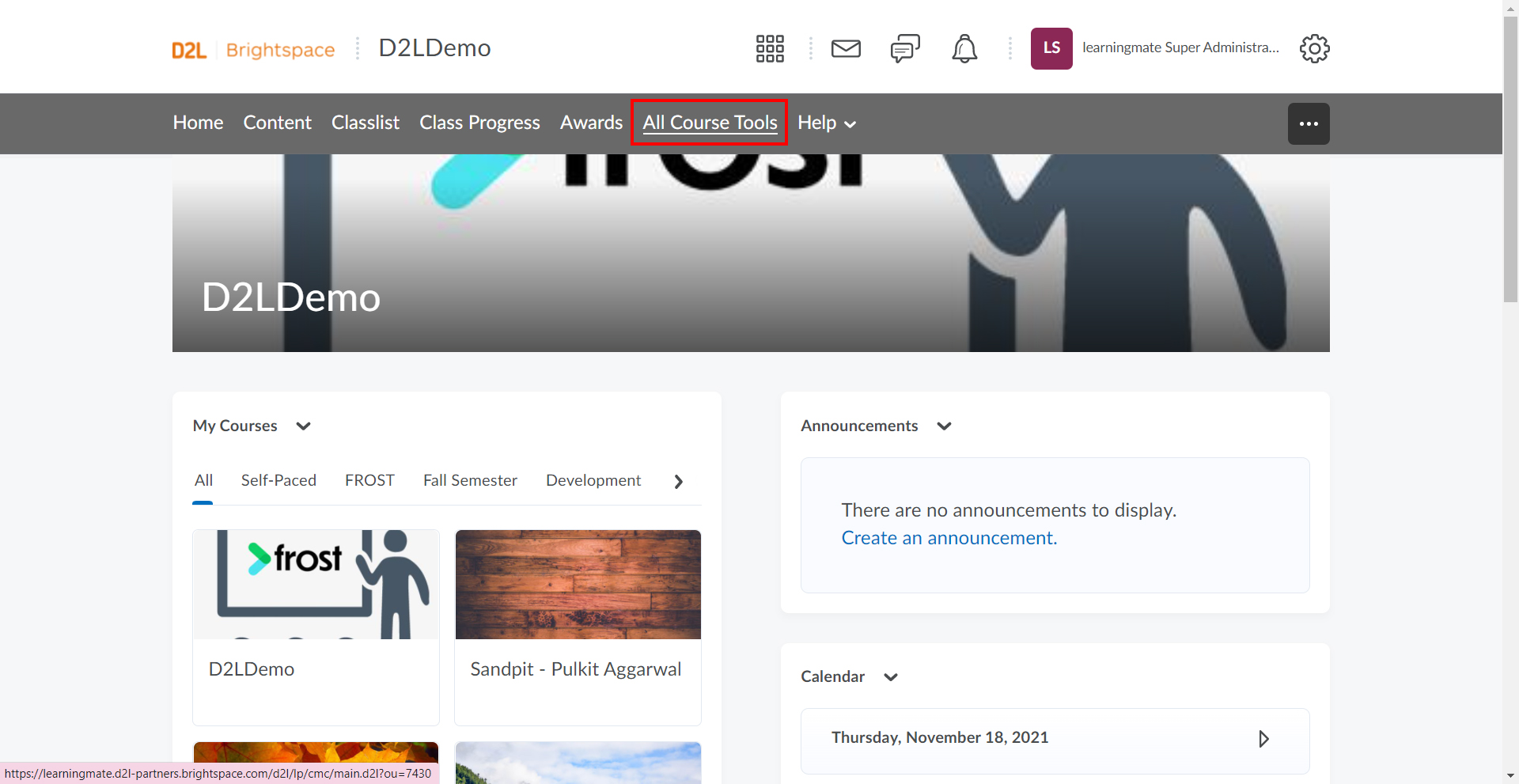
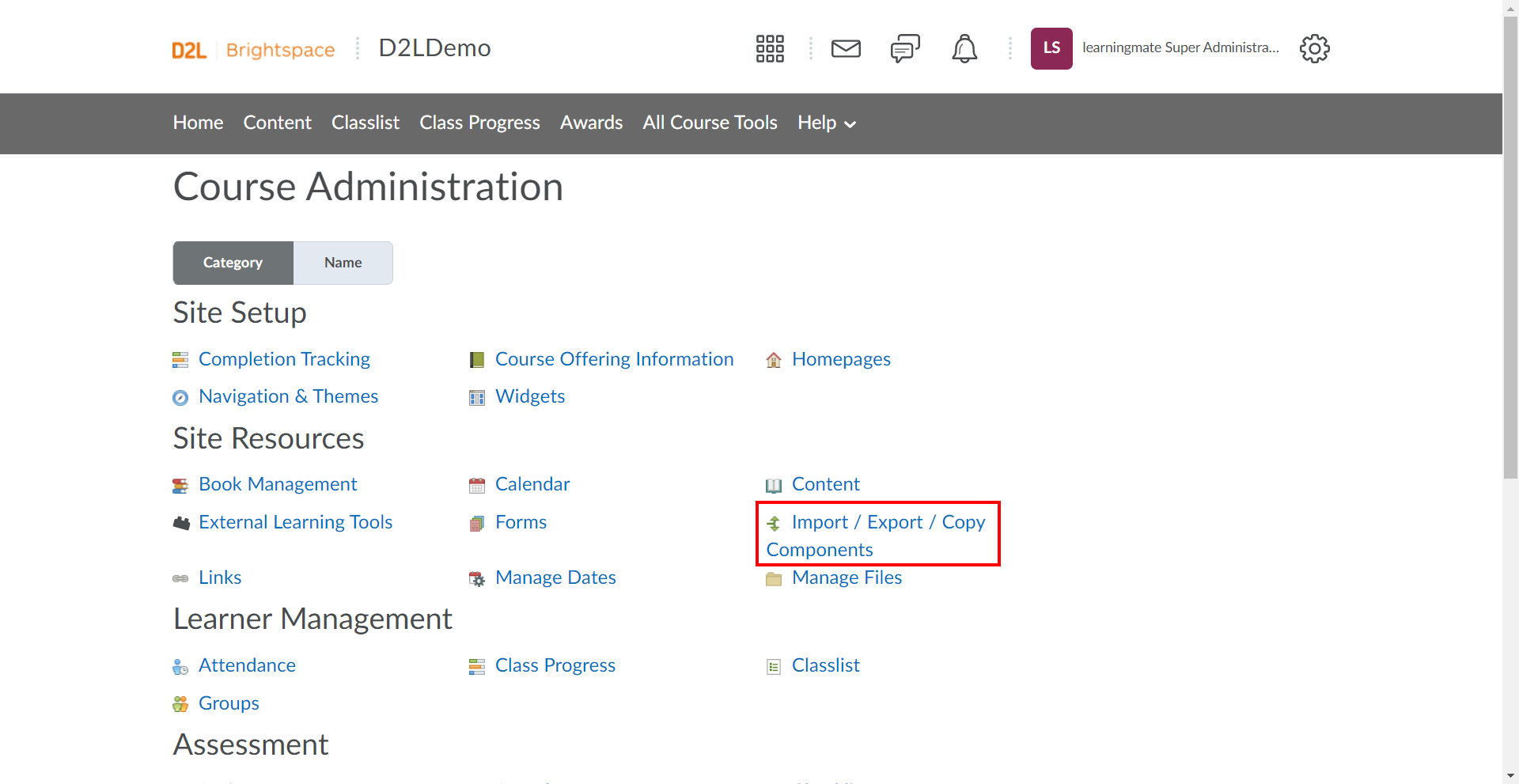
- Navigate to All Course Tools.
- Under Site Resources, select Import / Export / Copy Components.
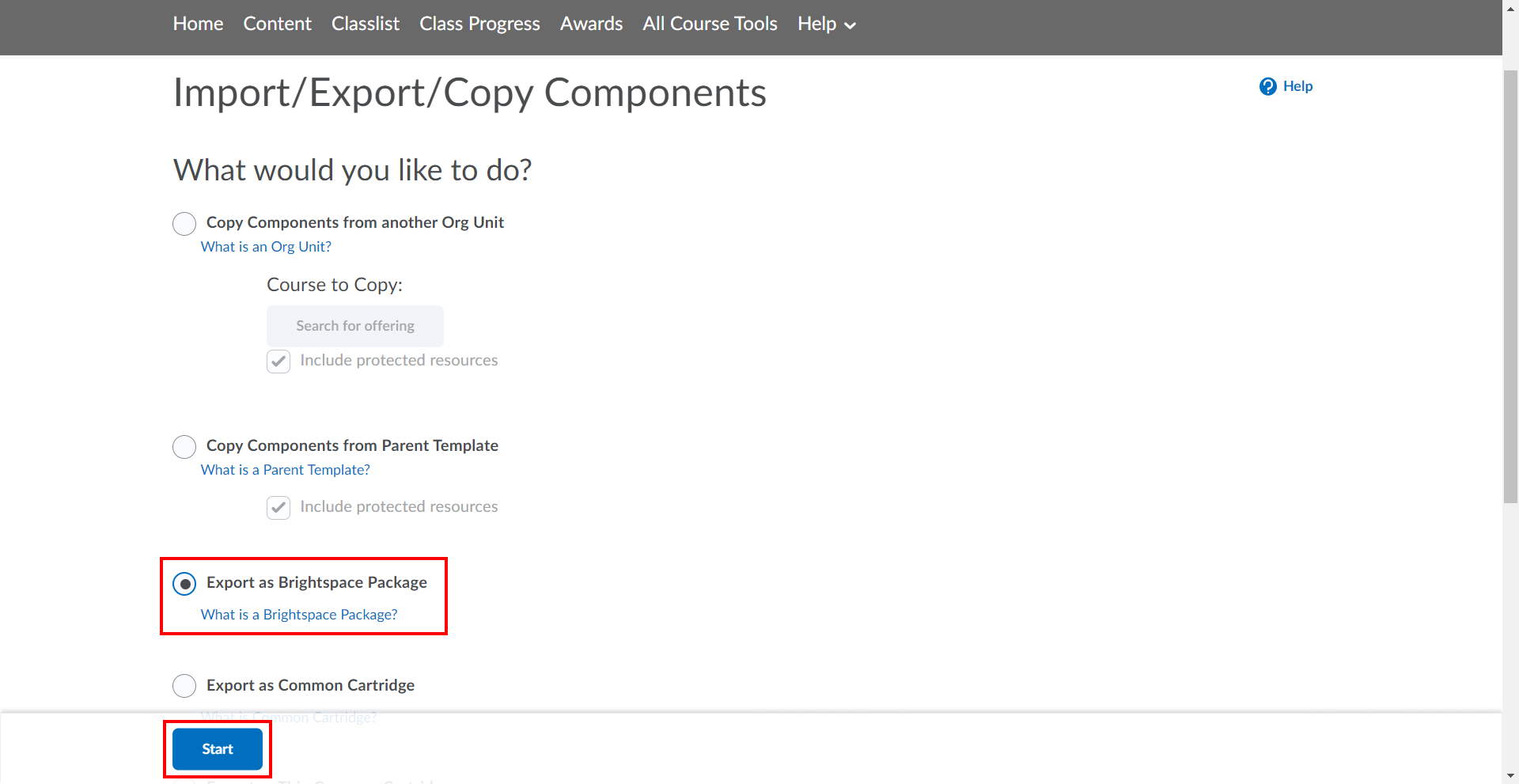
- Select Export as Brightspace Package and click Start.
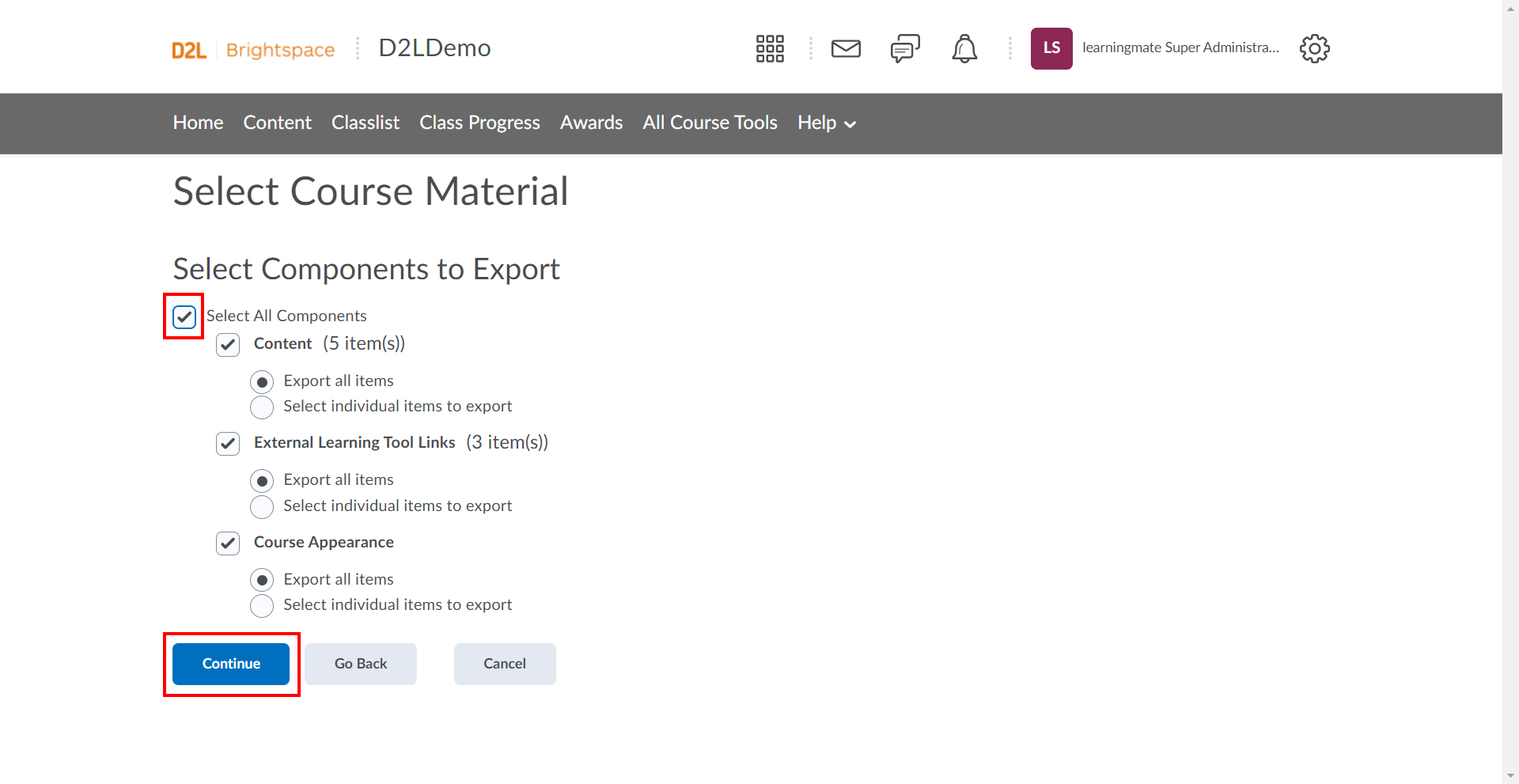
- Select the Components to export and click Continue.
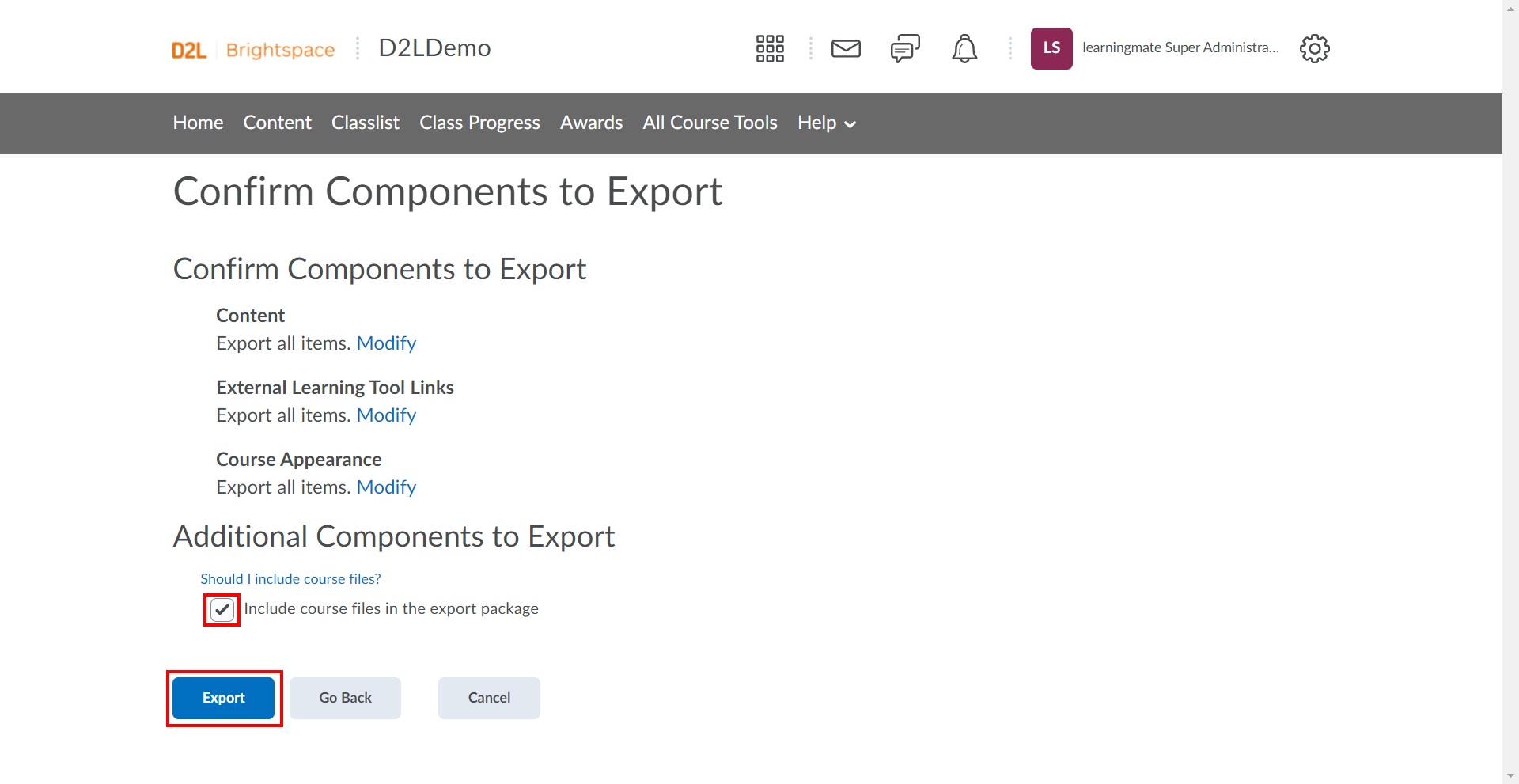
- Choose the required course files in the export package and click Export.
Note: Please ensure that Step 6 and Step 7 are performed correctly as it is mandatory for importing the D2L course data into Frost Designer.
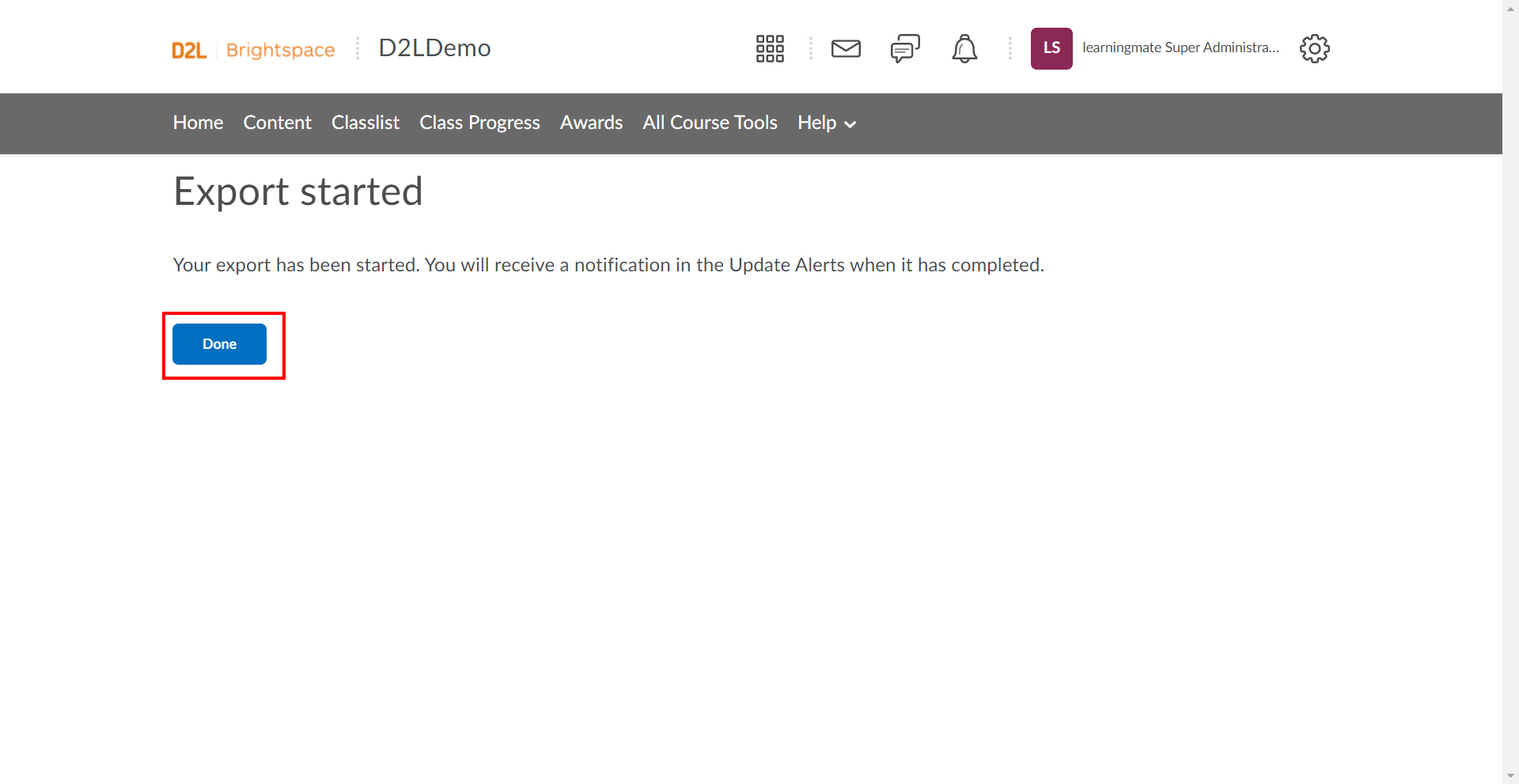
- Click Done.
Note: Exporting a course in D2L may take a few minutes, depending on its size. You will receive an email when the export is complete.
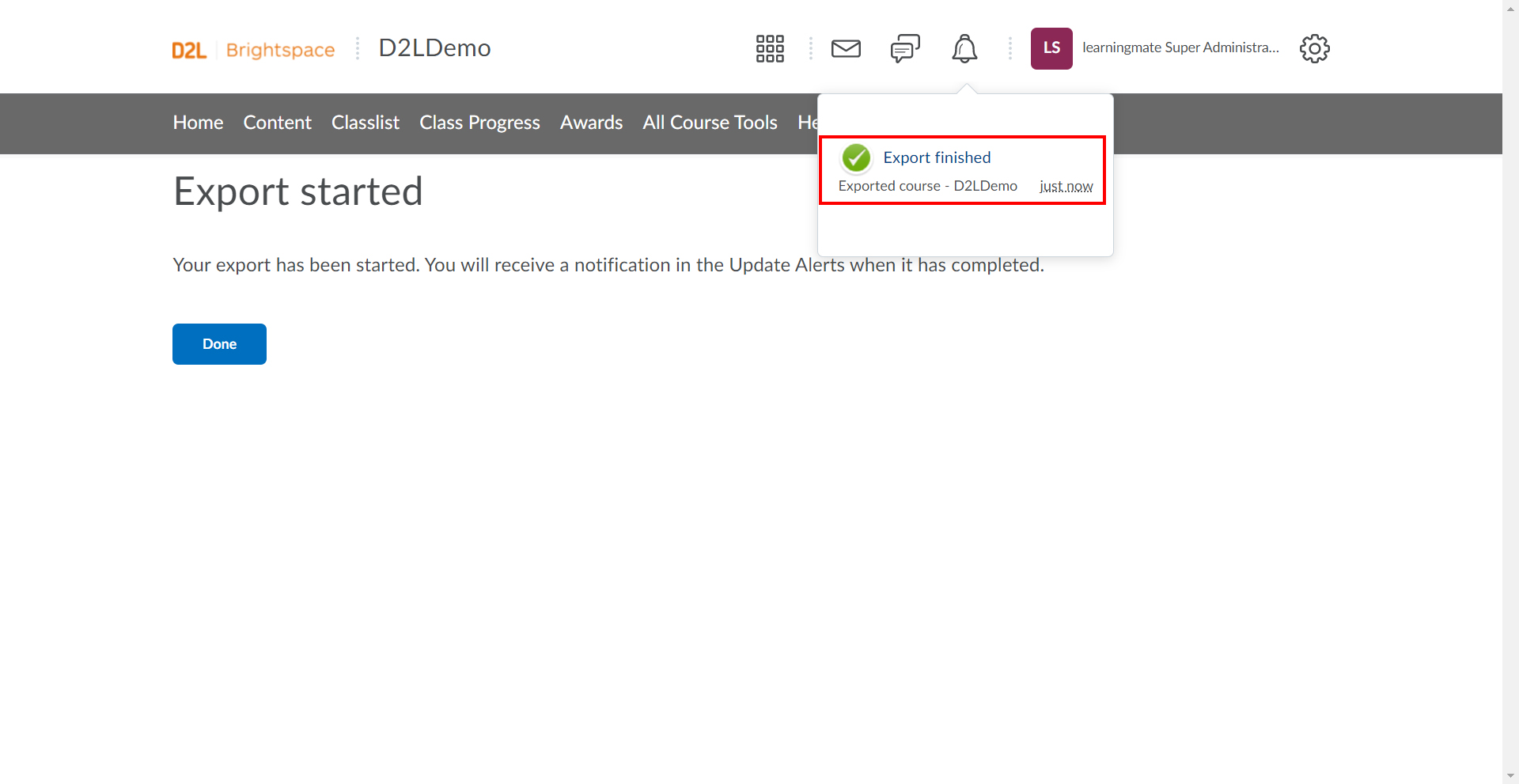
- Once the export is completed, a notification alert will be displayed.
- Click the Export finished link to open the Export Summary page.
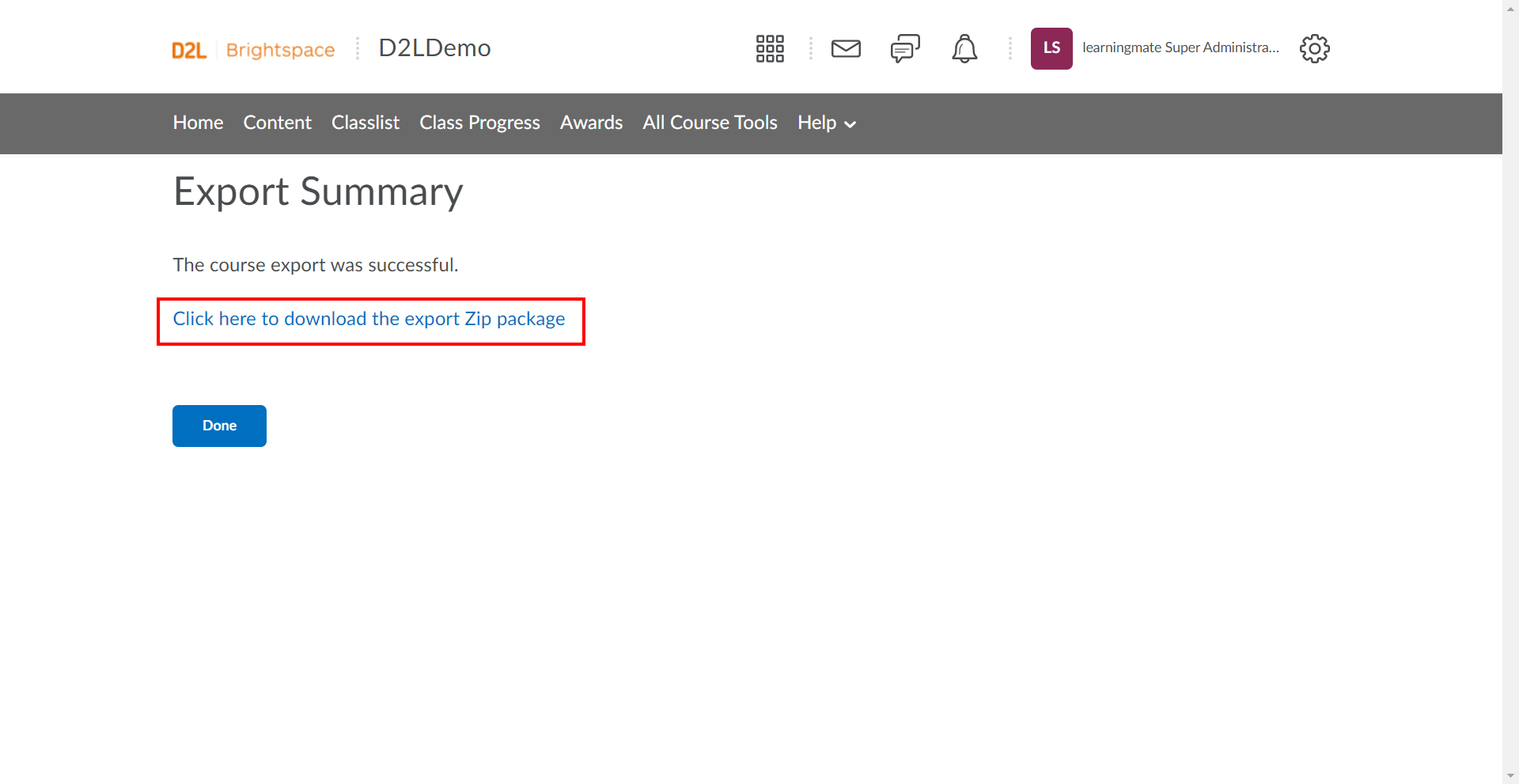
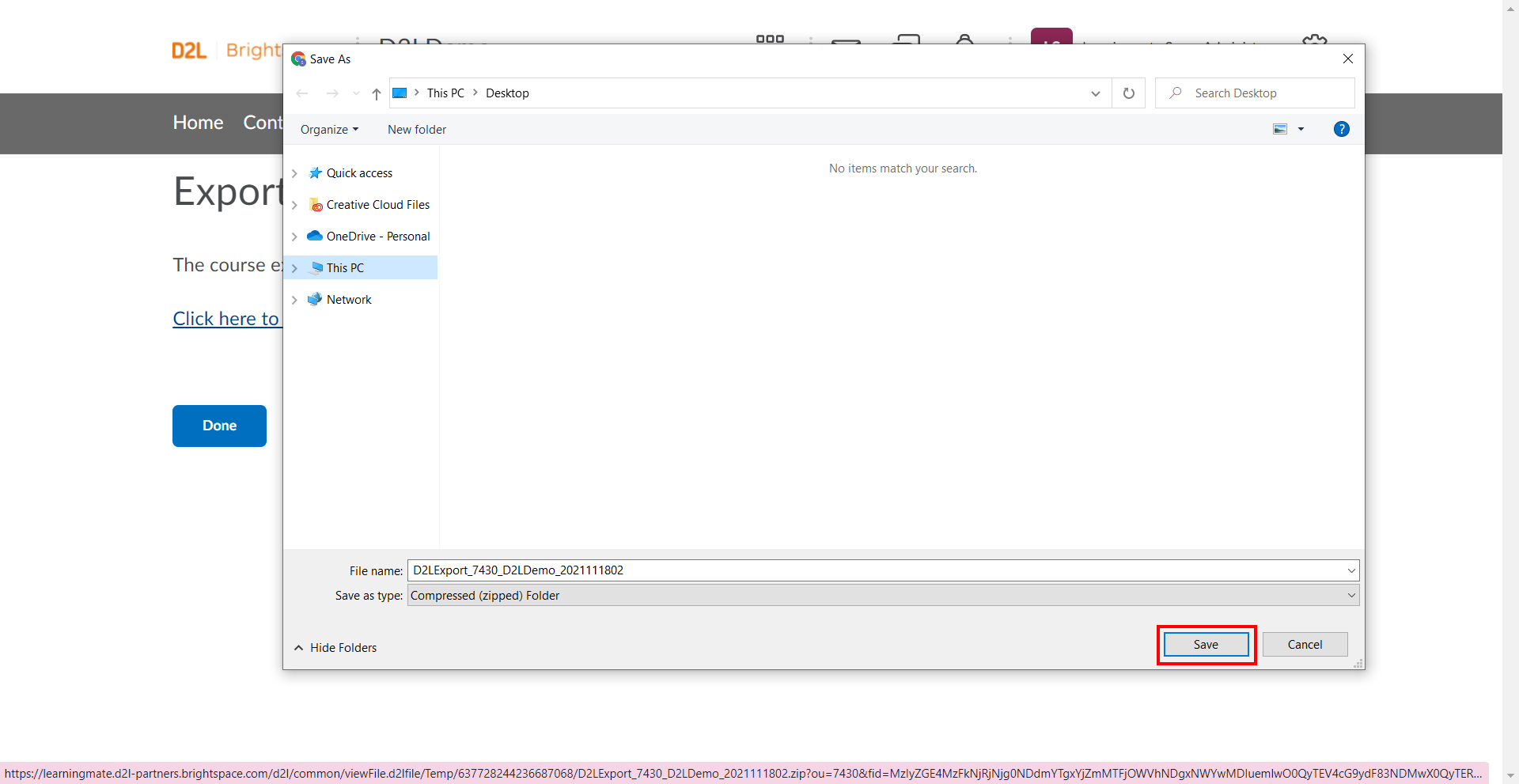
- Click the Click here to download the export Zip package link to download the package and click Save.
Note: On successful download, users can import the package in Frost Designer as an Online Course.