How to export a course from Blackboard Learn LMS
Blackboard Learn is a learning management system and virtual learning environment developed by Blackboard Inc. It allows University/College faculties to author courses in Frost and distribute in Blackboard Learn LMS (Frost—Blackboard Learn Export). Alternatively, it also allows University/College faculties to bring already authored content in Blackboard Learn to Frost (Blackboard Learn—Frost Import).
To export a course from Blackboard Learn LMS:
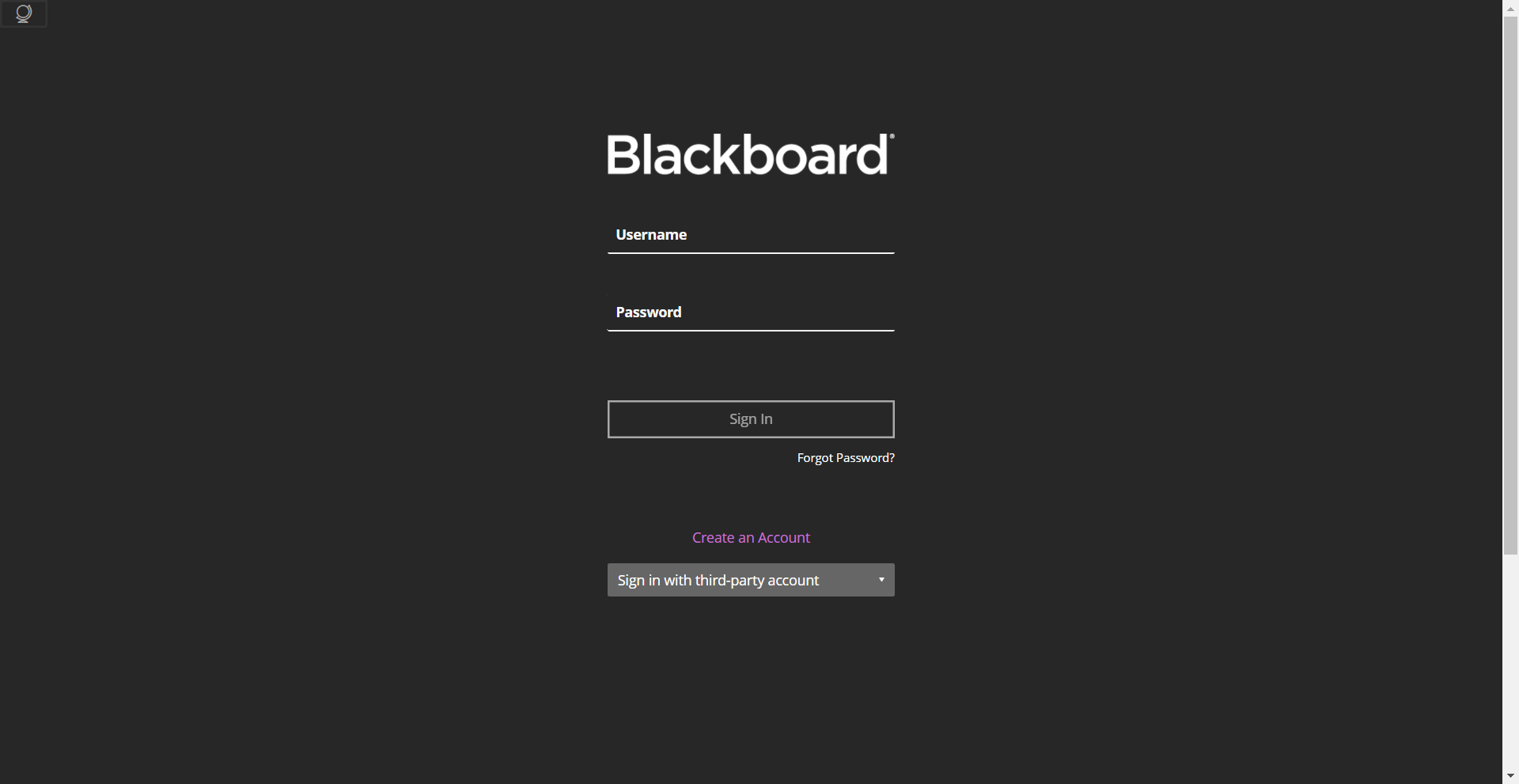
- Login into Blackboard.
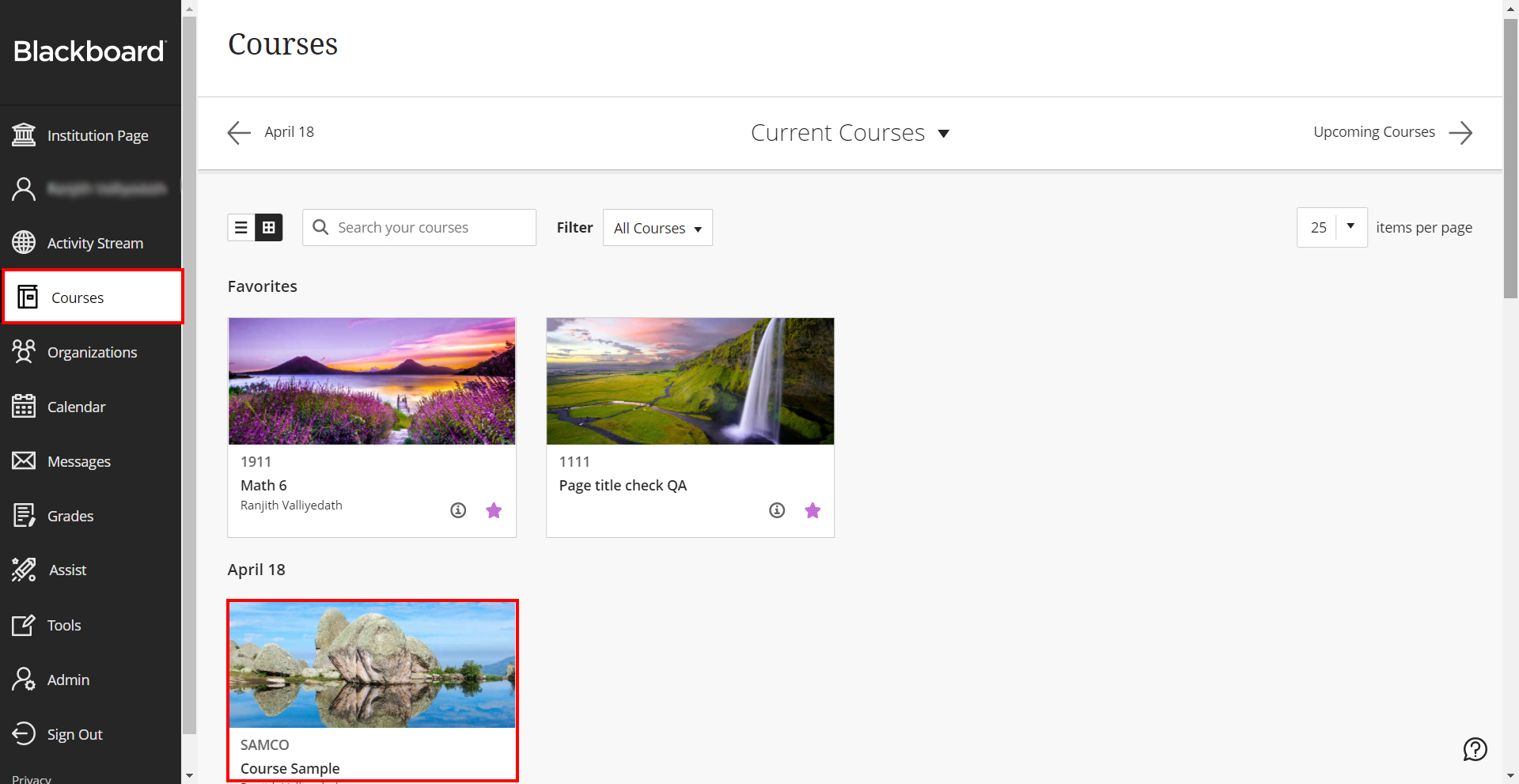
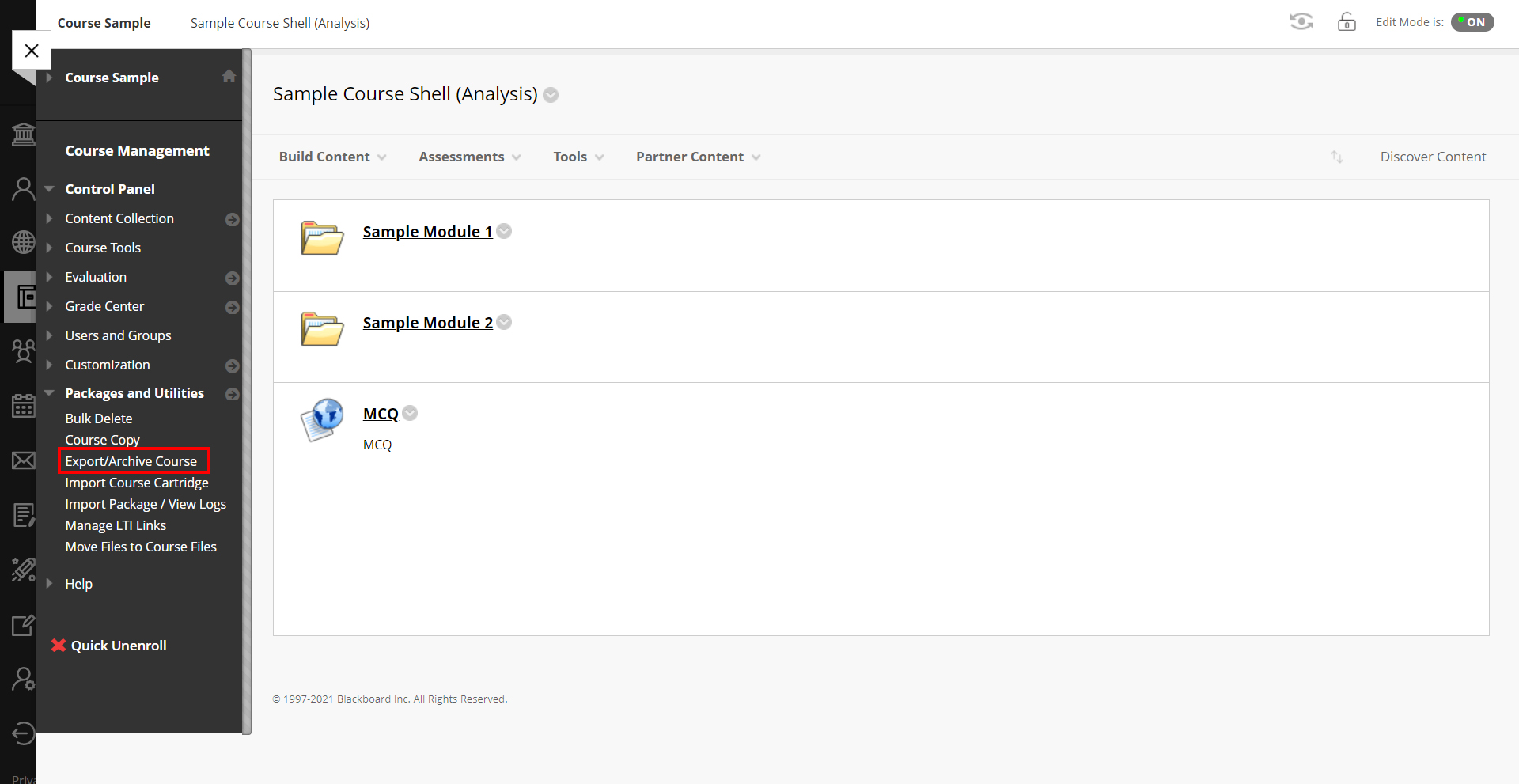
- Navigate to the Courses section on the left panel and select the course.
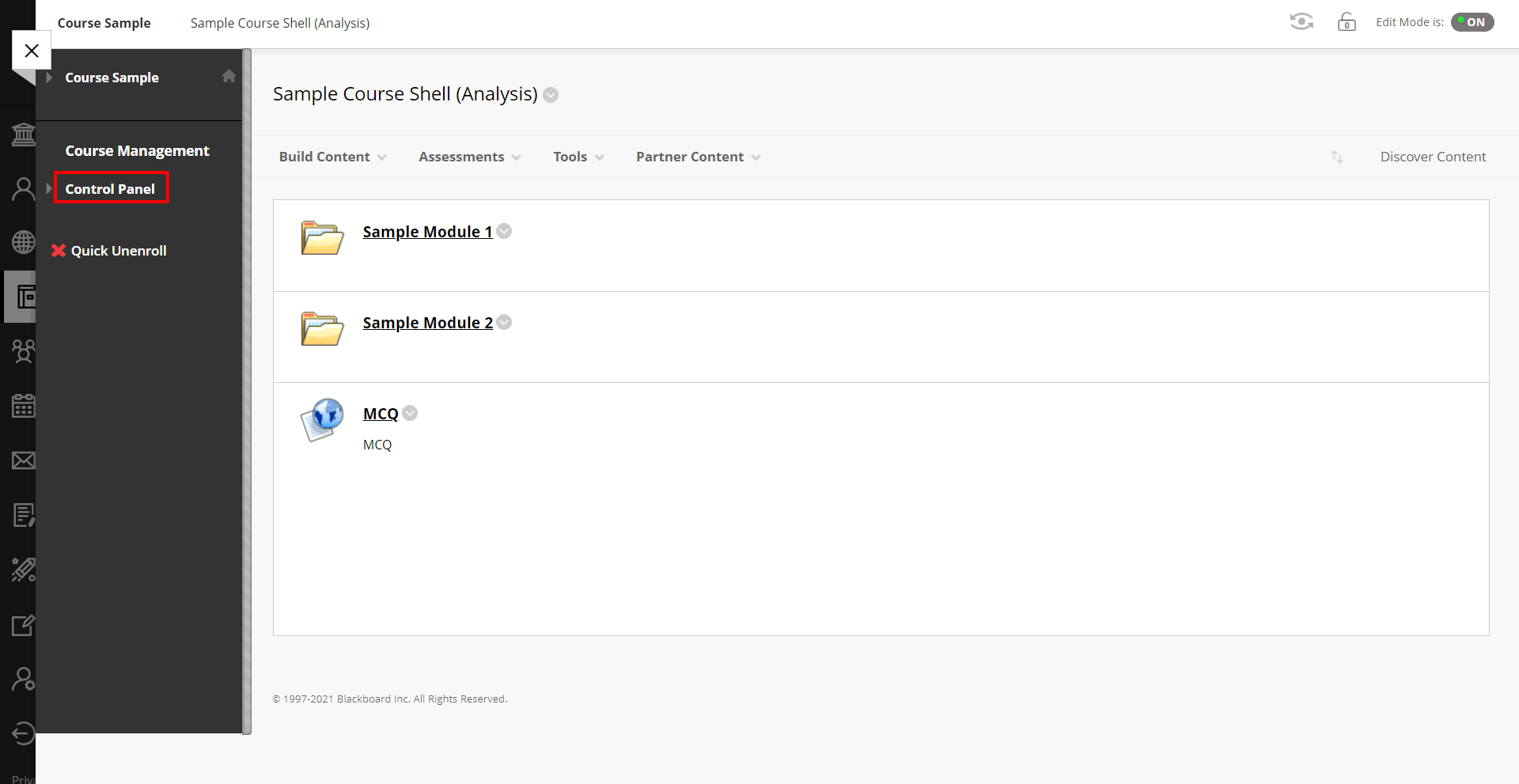
- Select Control Panel.
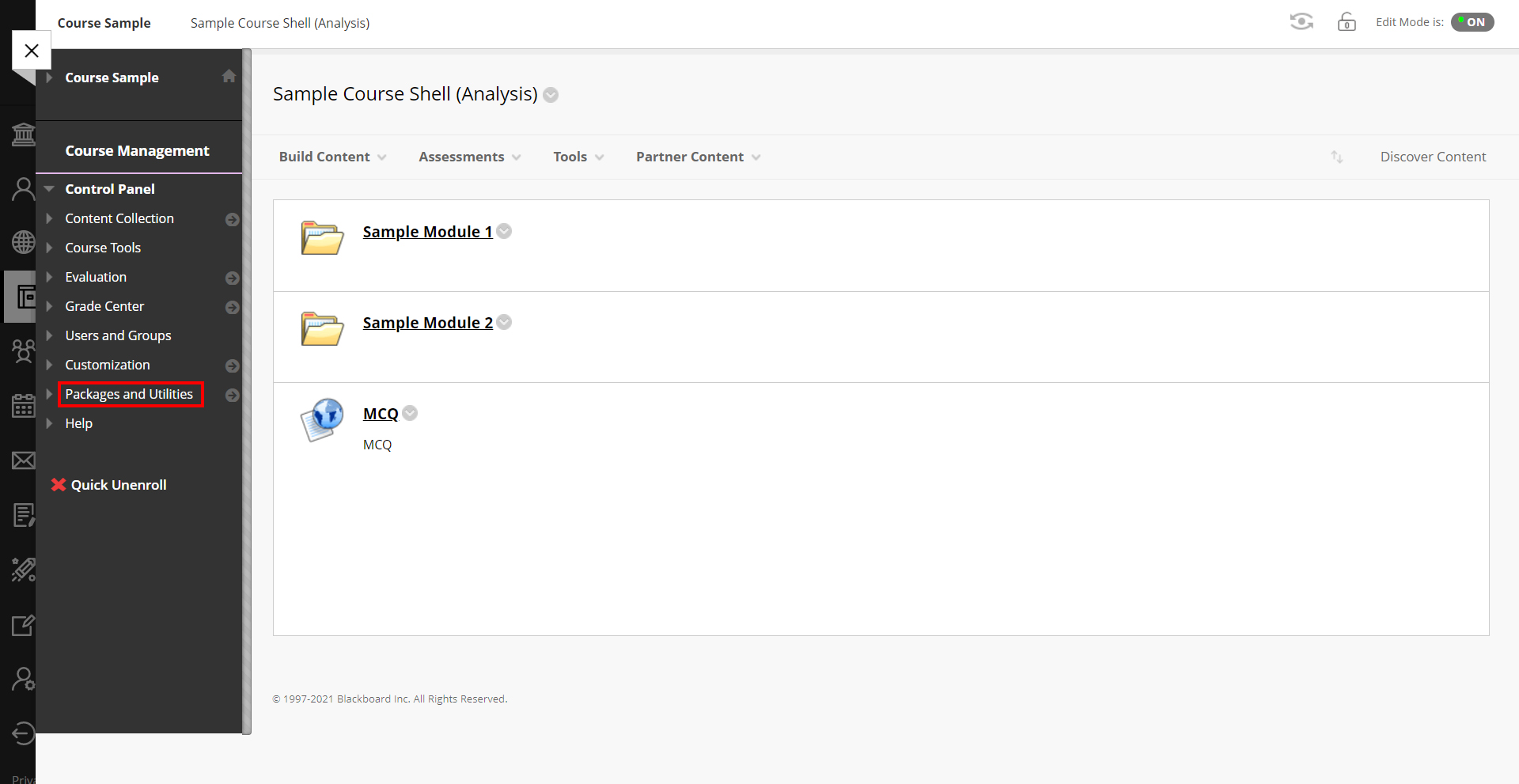
- Click Export/Archive Course under Packages and Utilities menu.
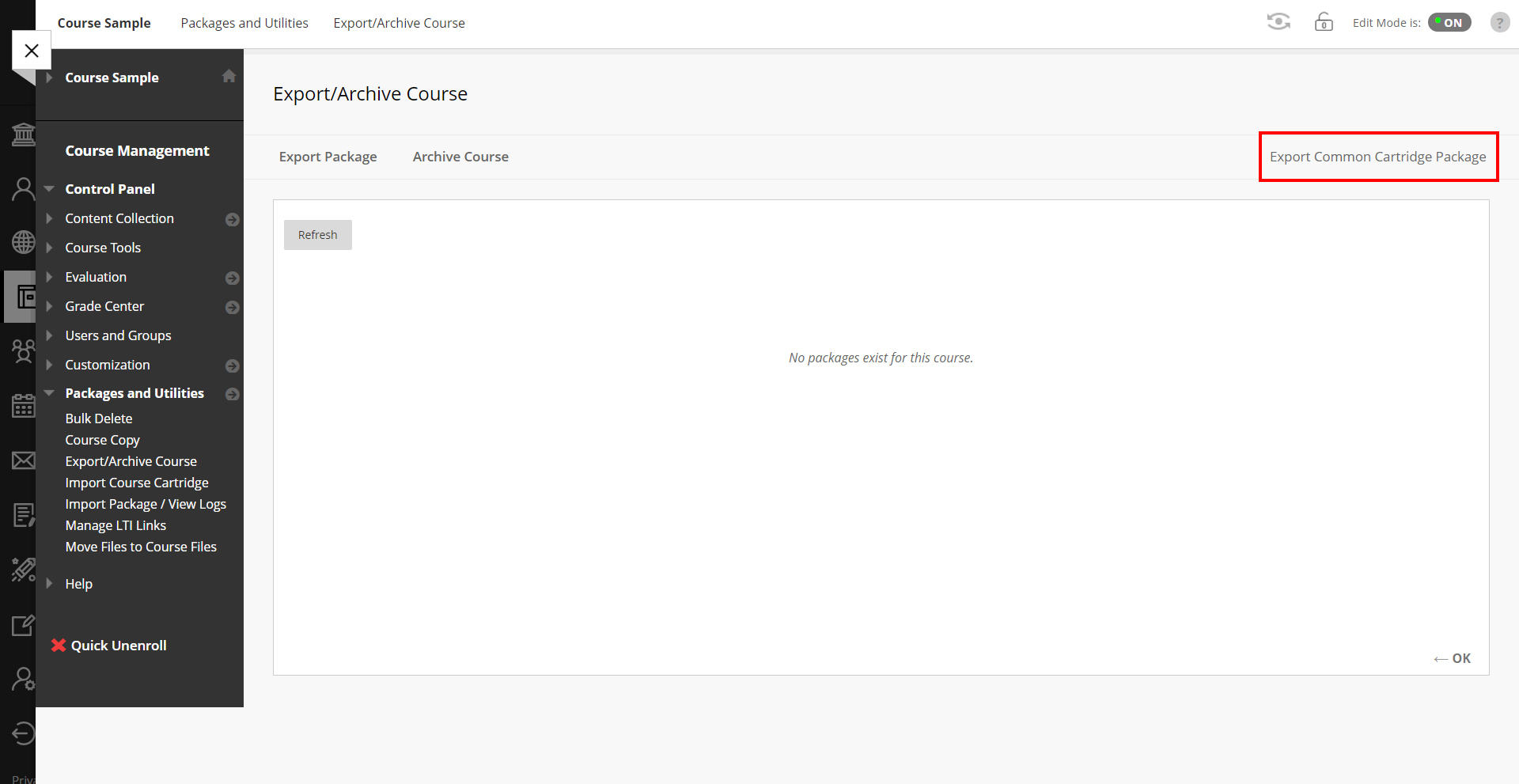
- Click the Export Common Cartridge Package button.
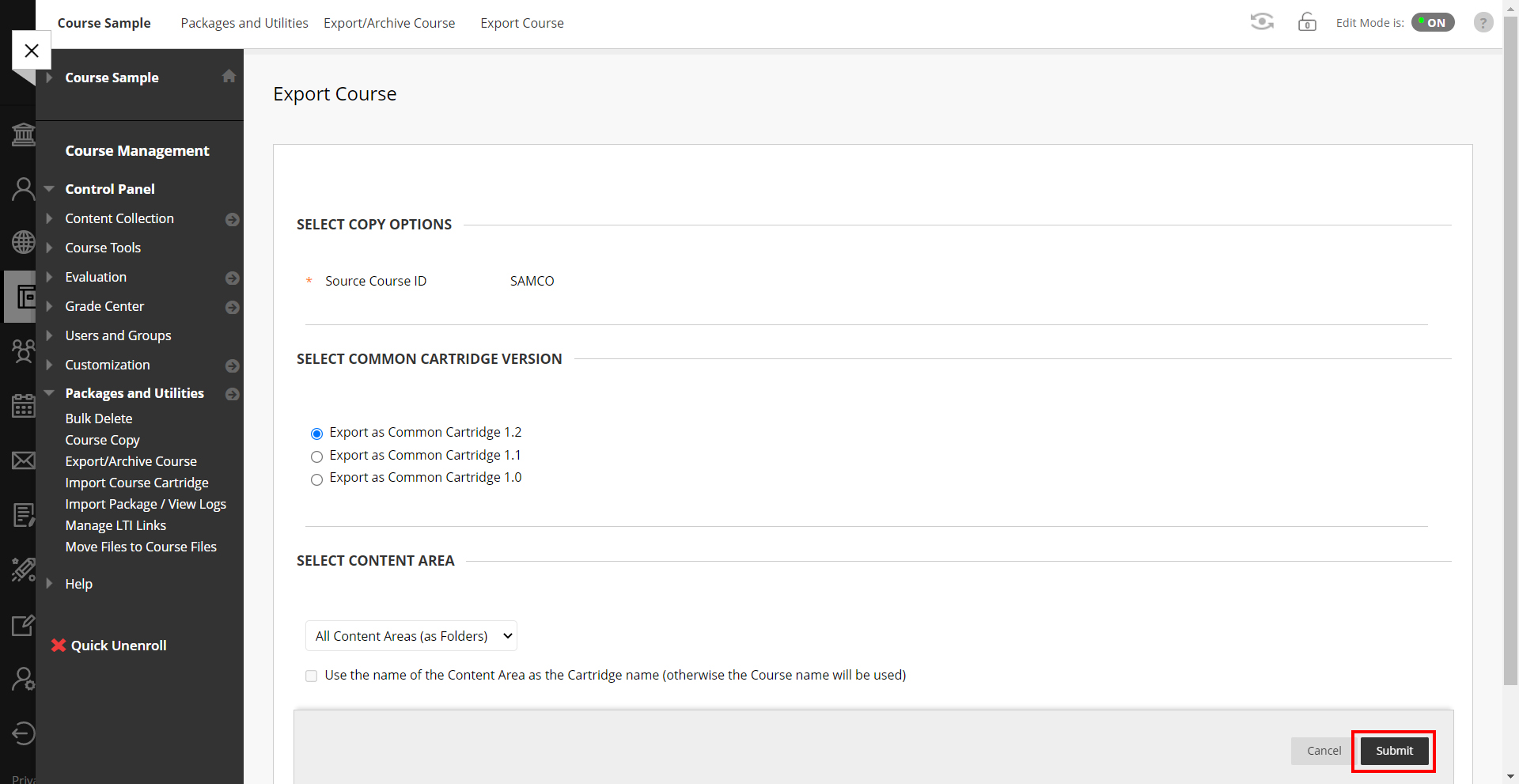
- On the Export Course page, provide the following inputs:
- Select Common Cartridge Version.
- Select Content Area to export.
- Click the Submit button.
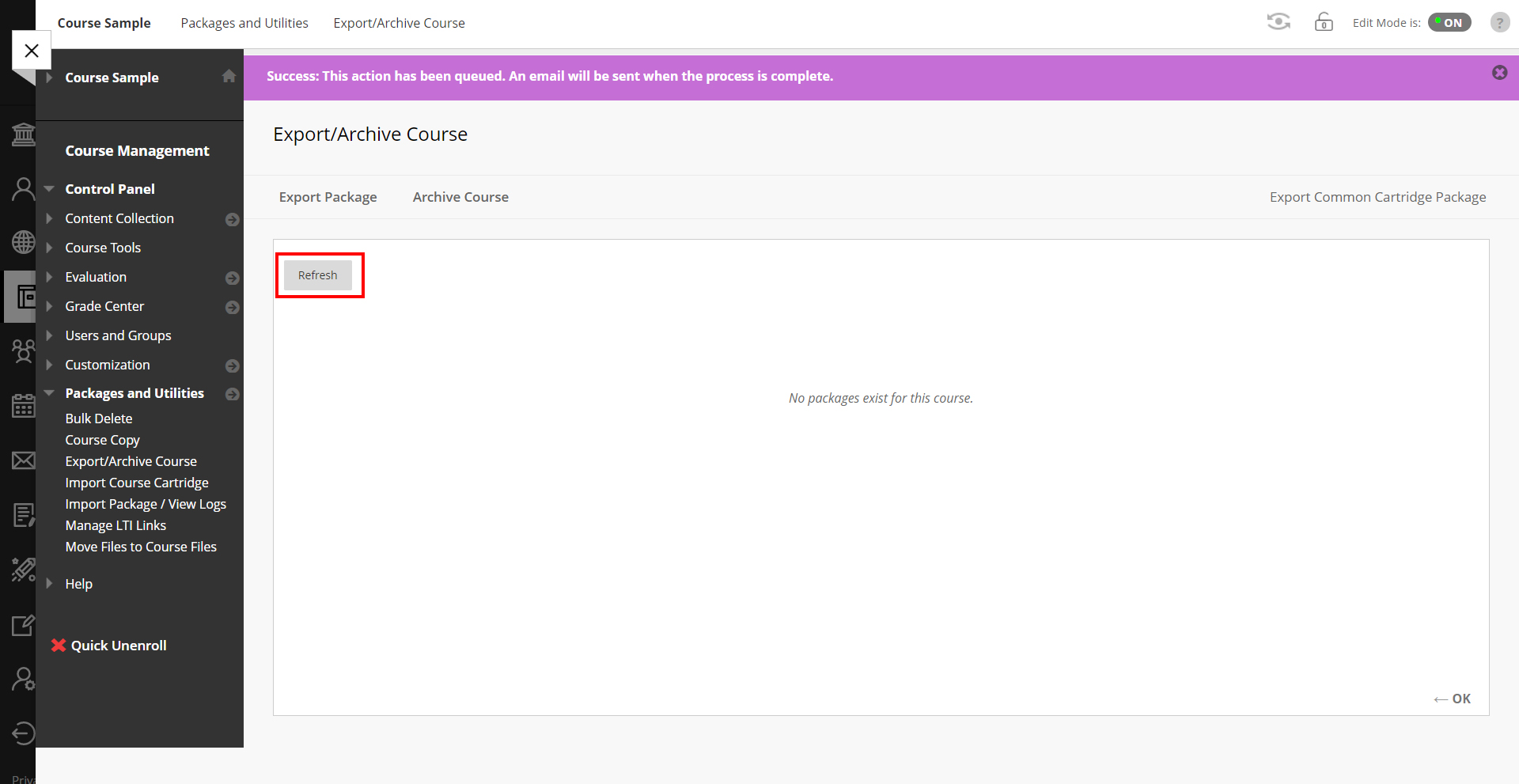
Note: Exporting a course in Blackboard may take a few minutes, depending on its size. You will receive an email when the export is complete.
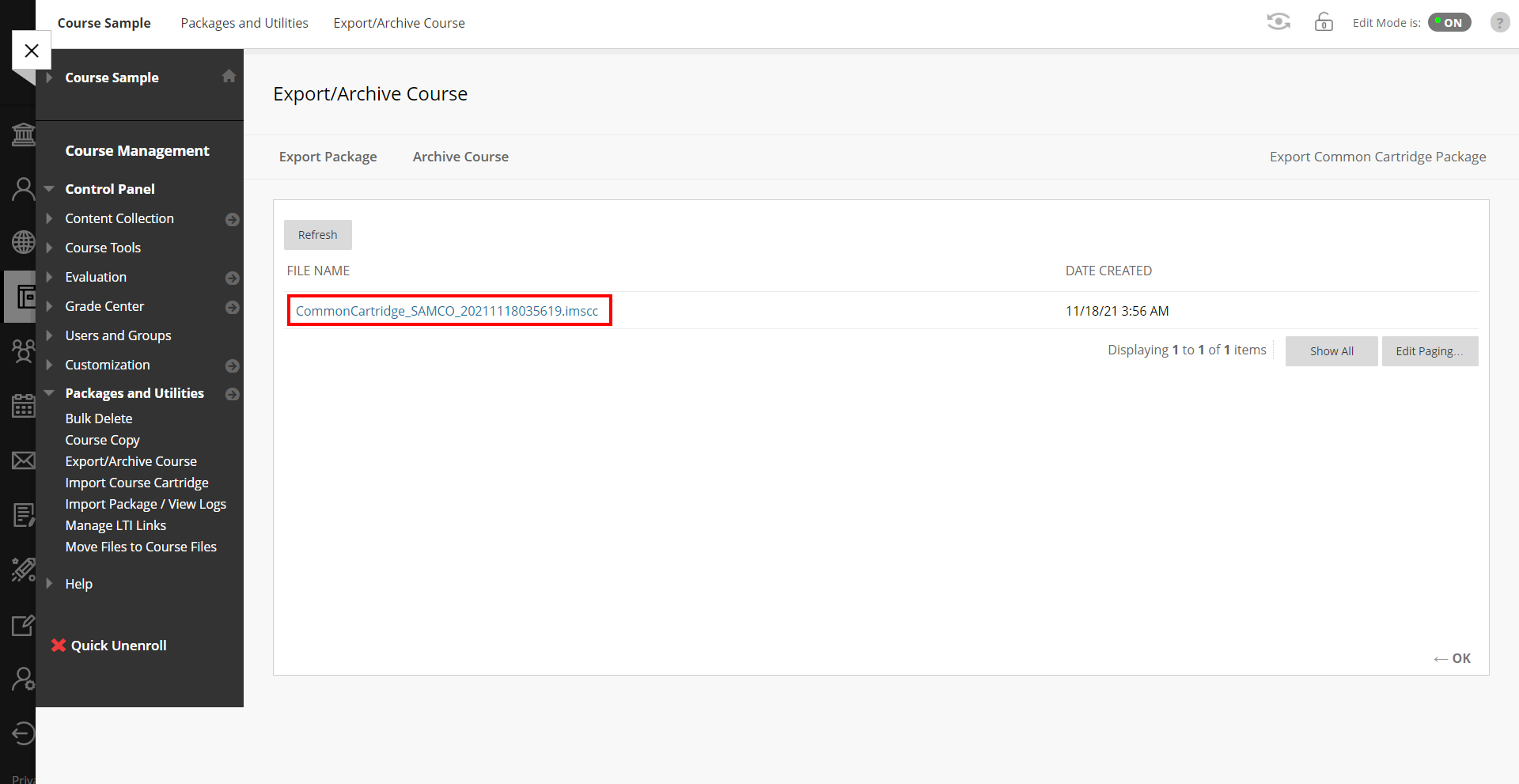
- Click Refresh to update the list of exported packages.
- Once the export is completed, the exported package will be displayed under the Export/Archive Course page.
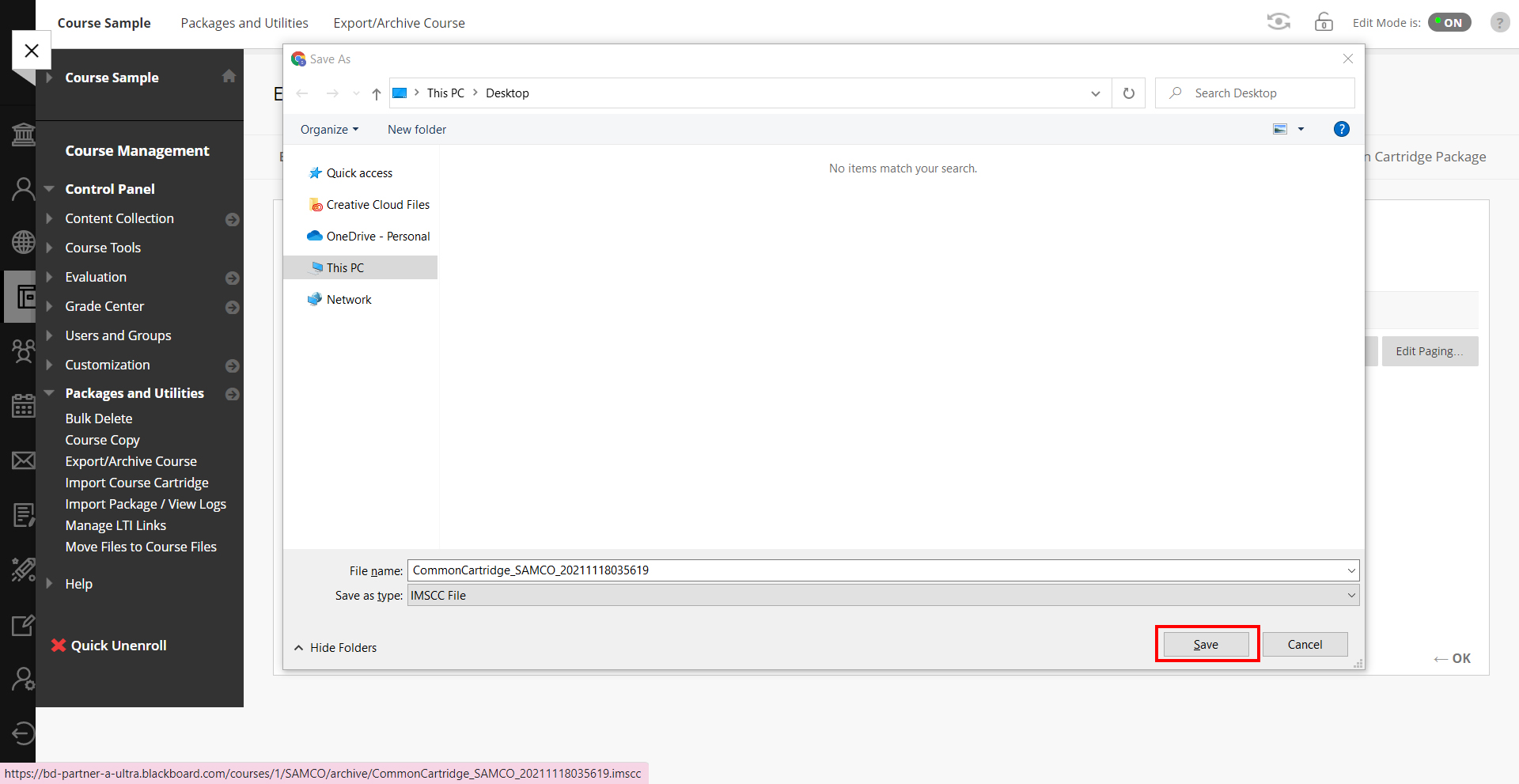
- Click the exported file name to download the package and click Save.
Note: On successful download, users can import the package in Frost Designer as an Online Course.