How to edit or change the order of the Values of the Select type KVPs
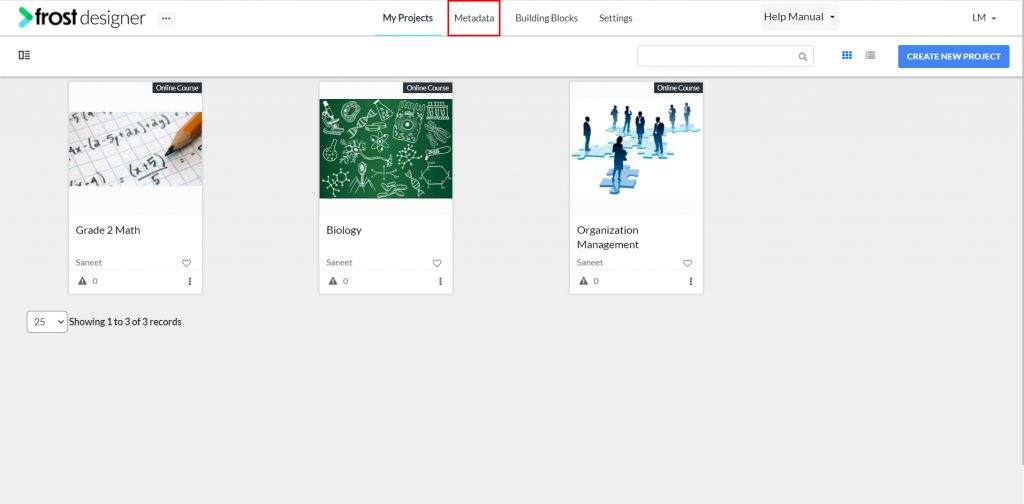
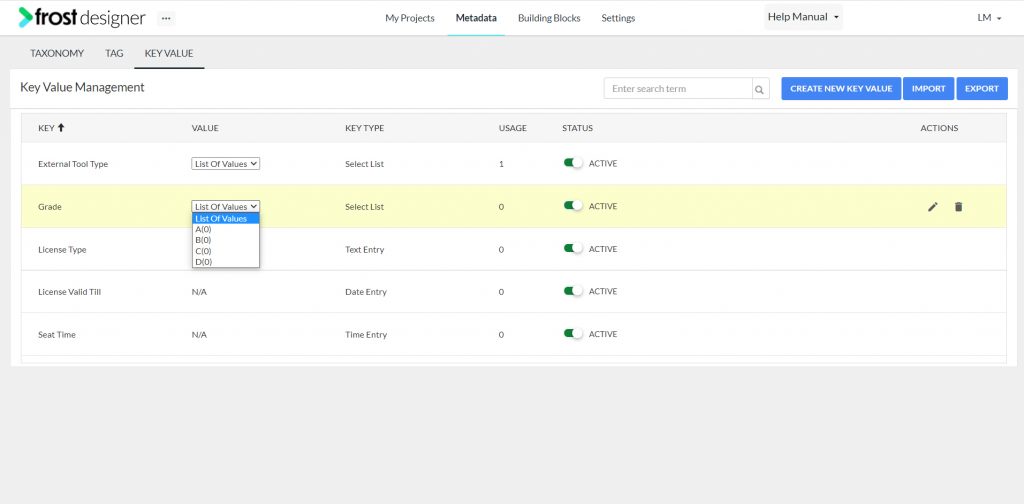
- From the Frost dashboard or LOR Dashboard, click the Metadata option at the top menu of the screen.
Note: If you are working on a project page, you need to navigate back to the Frost landing page first.
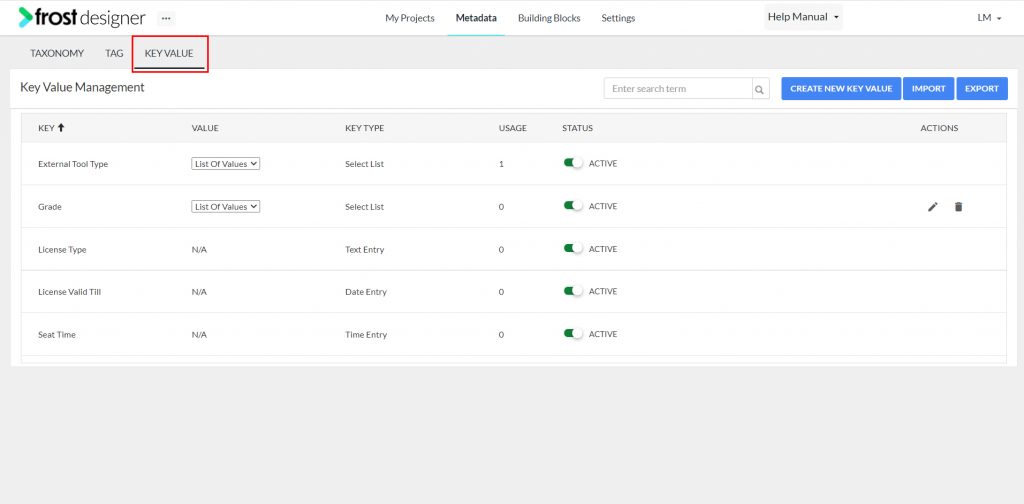
- From the Metadata dashboard, select the KEY VALUE tab for navigating to the Key Value Management screen.
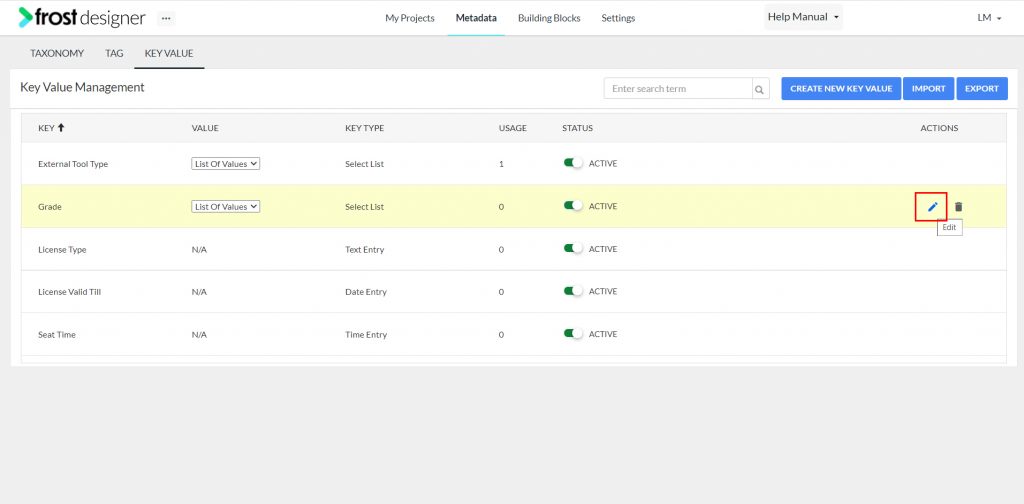
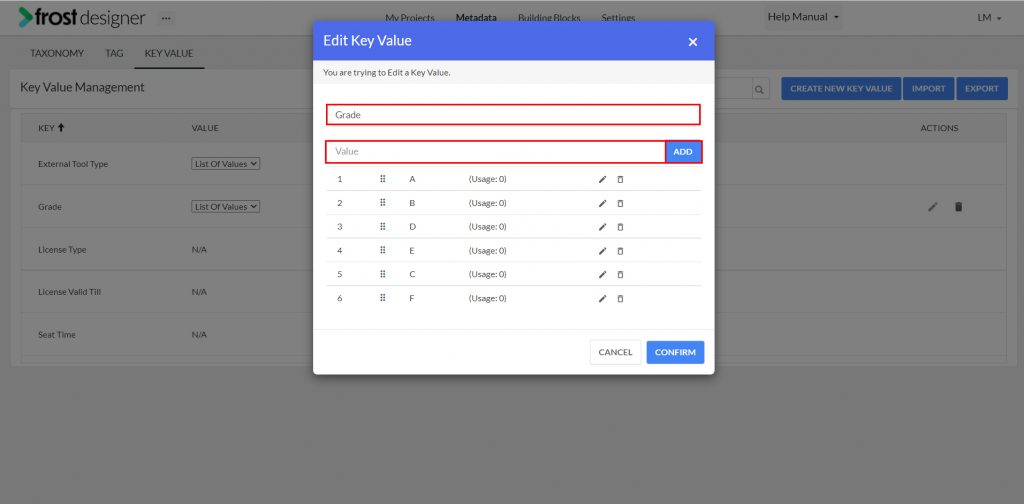
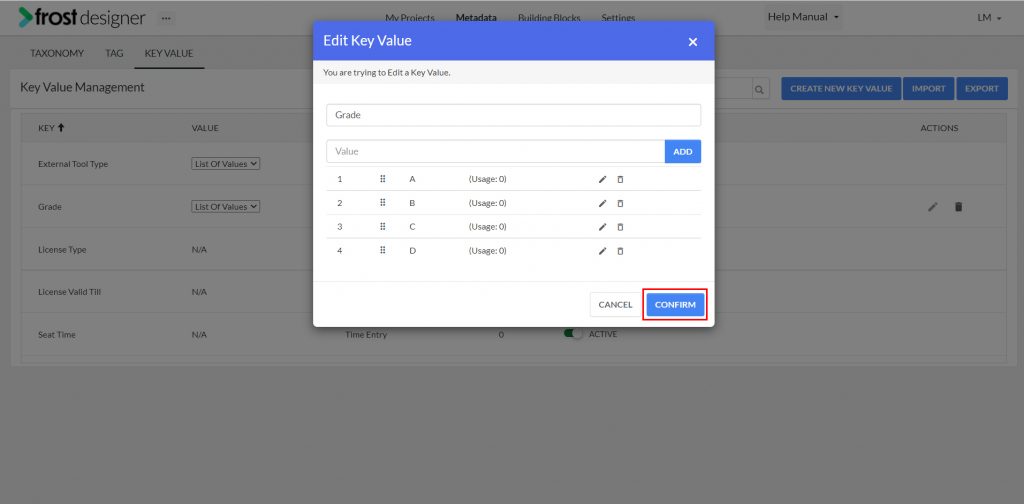
- Click the Edit button under the Action Column to edit a KVP. This opens up a pop-up window called Edit Key Value.
- For a Select Type Key Value, you can edit any information that was added during creation, including:
- Key: – name of the KVP
- Value: – to add new values in the select type KVP
- Enter the new Value
- Click Add
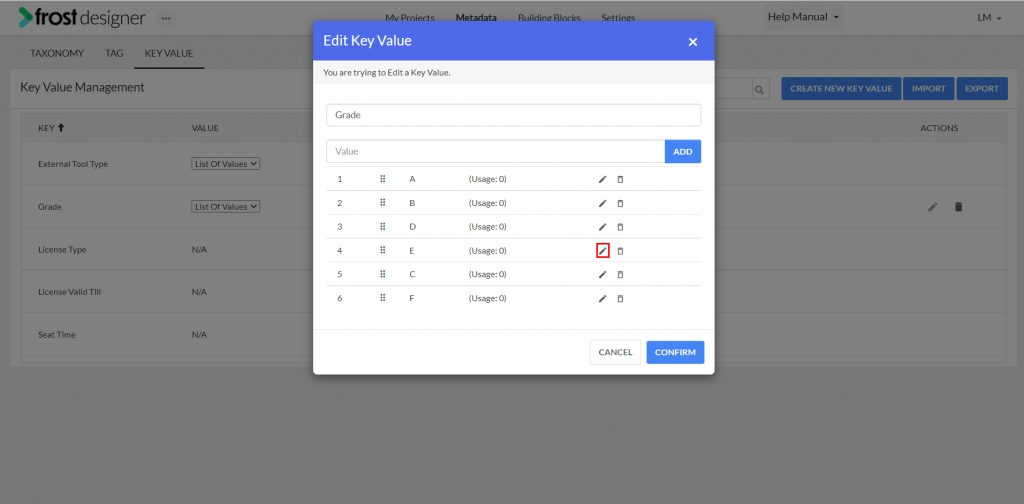
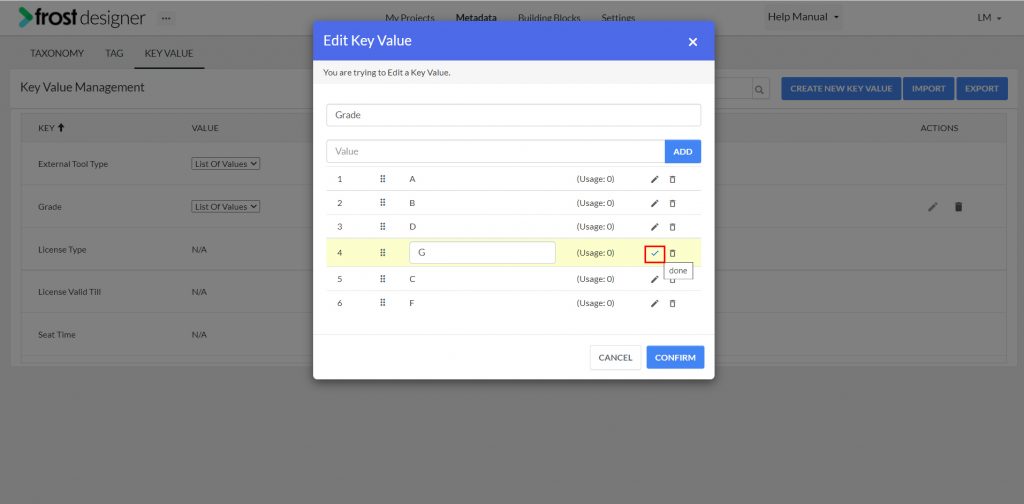
- Edit Value: – the edit icon next to any existing key value allows you to edit the value of the key. Click the done icon after editing.
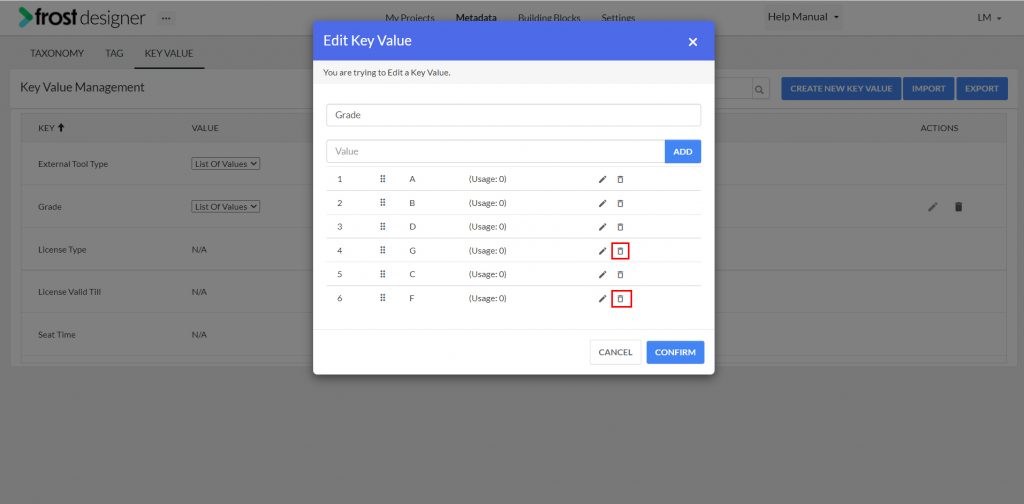
- Delete Value: – the delete icon next to any existing key value allows you to delete the value of the key
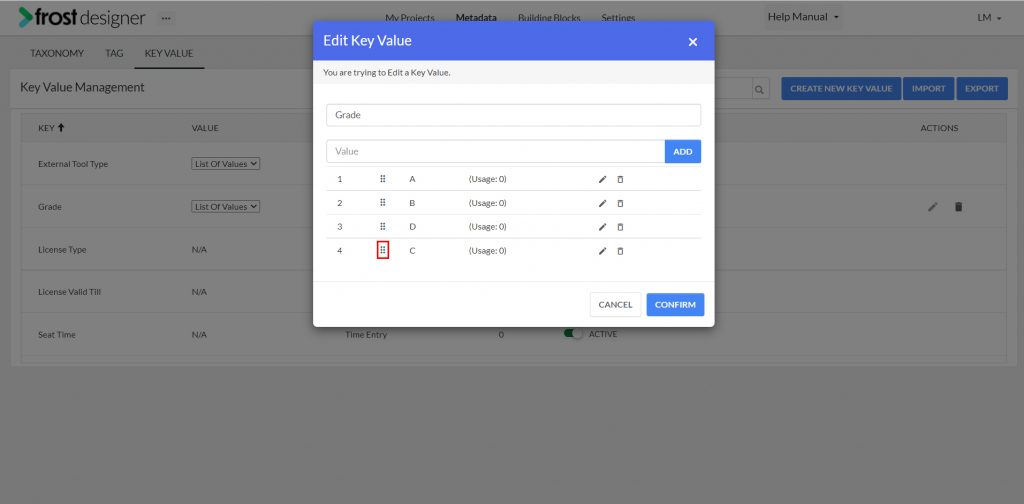
- Reorder: – the drag icon (grid of six dots) allows you to drag key values and reorder them within key value list
Note: Order of the Values of a Key would reflect and displayed on all the areas where the said KVP is being used
- On editing the Key, click Confirm.