How to Import a Taxonomy
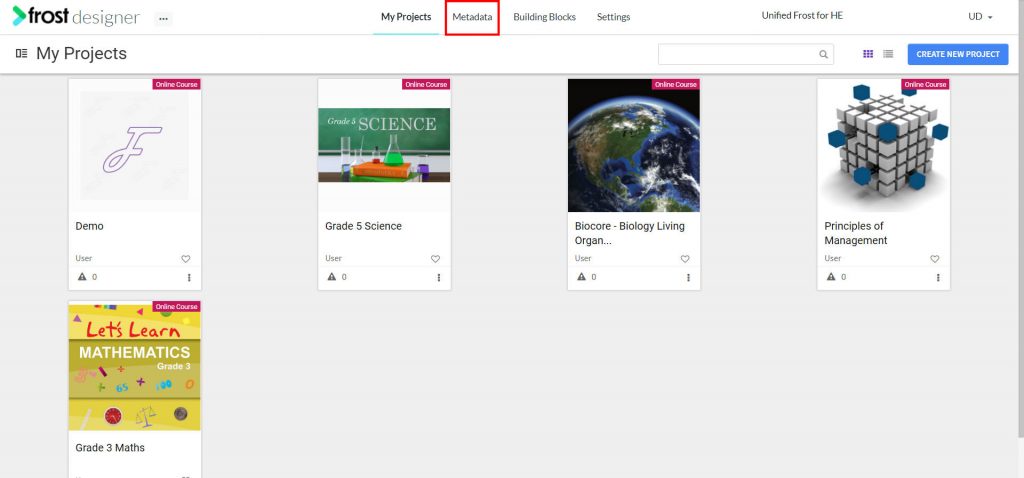
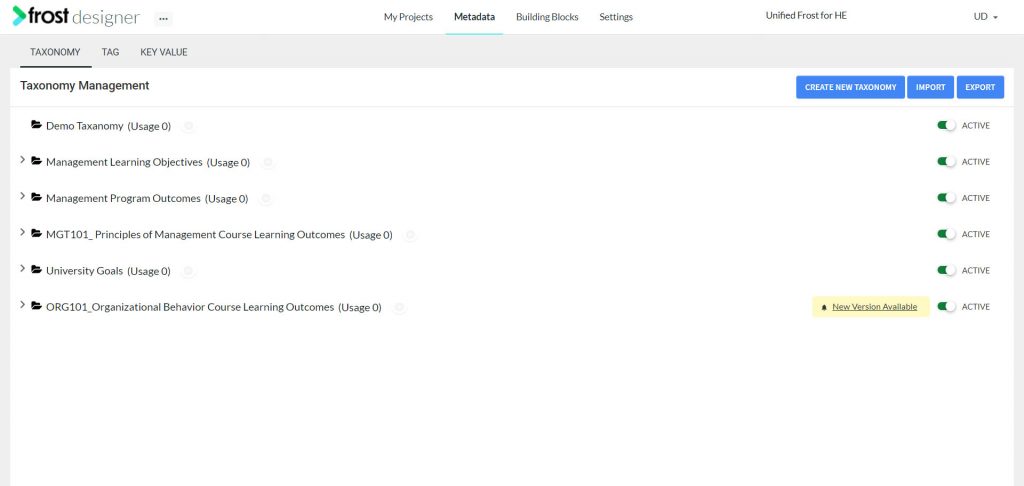

- From the Frost dashboard, click the Metadata option on the top menu of the screen.
Note: If you are working on a project page, you need to navigate back to the Frost landing page first.
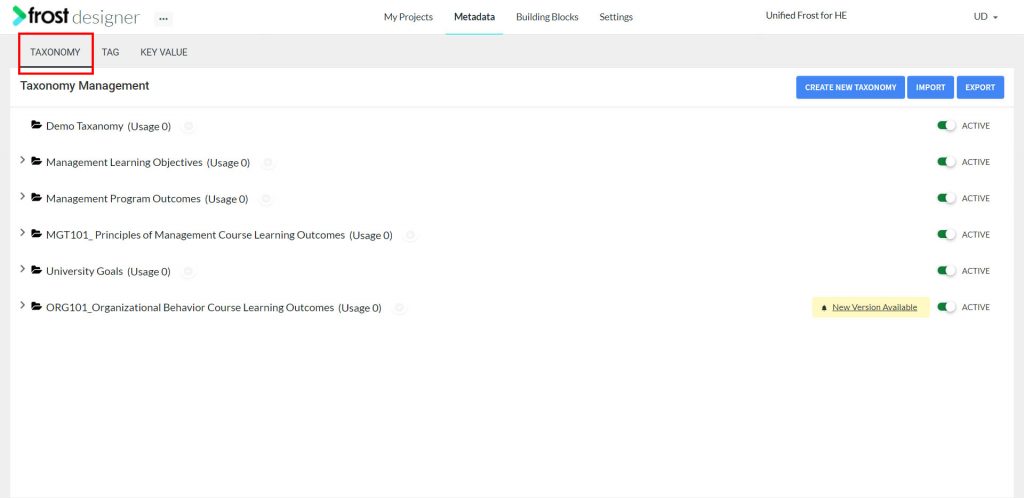
- From the Metadata dashboard, select the TAXONOMY tab to navigate to the Taxonomy Management screen.
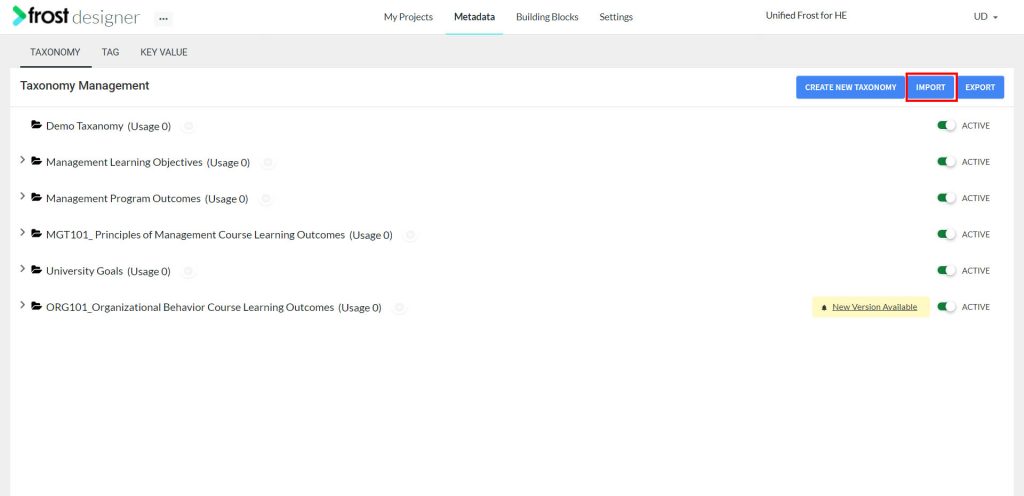
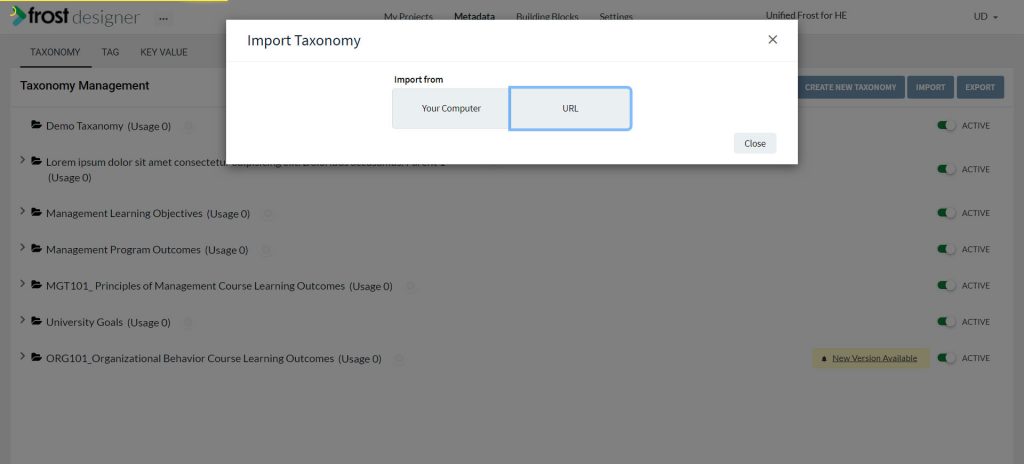
- Click Import.
- Choose from any of the two given options to import:
- Your Computer – by uploading a valid file (CSV or CASE JSON)
- URL – by URL of a case compliant server
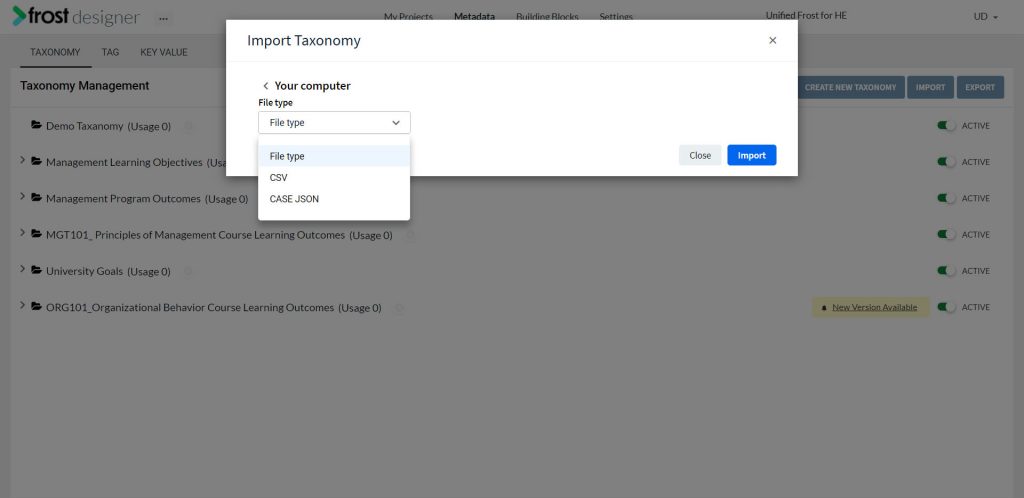
- To upload taxonomy from Your Computer:
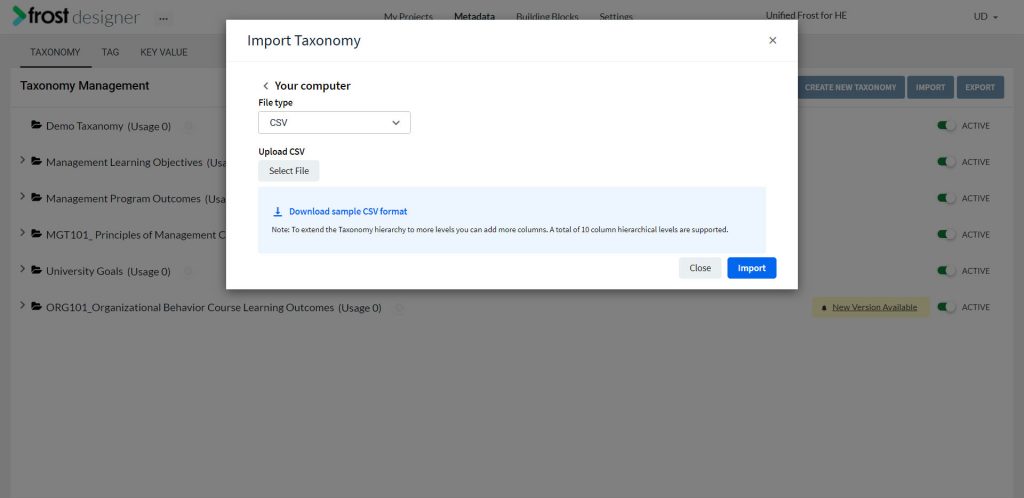
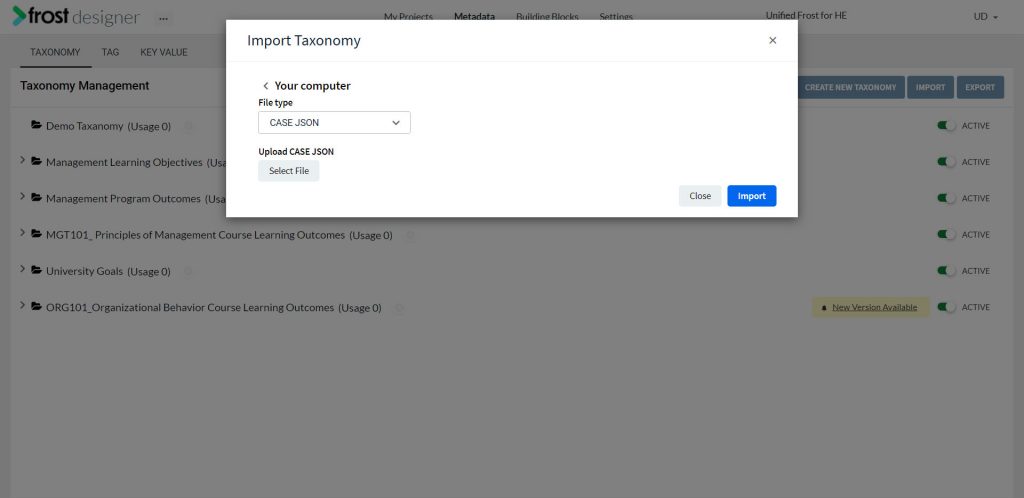
- Choose the file type as CSV or CASE JSON.
- Click Select File to upload a .csv file or a CASE Json file from your computer. To download a sample CSV format, click Download sample CSV format.
- Click Import.
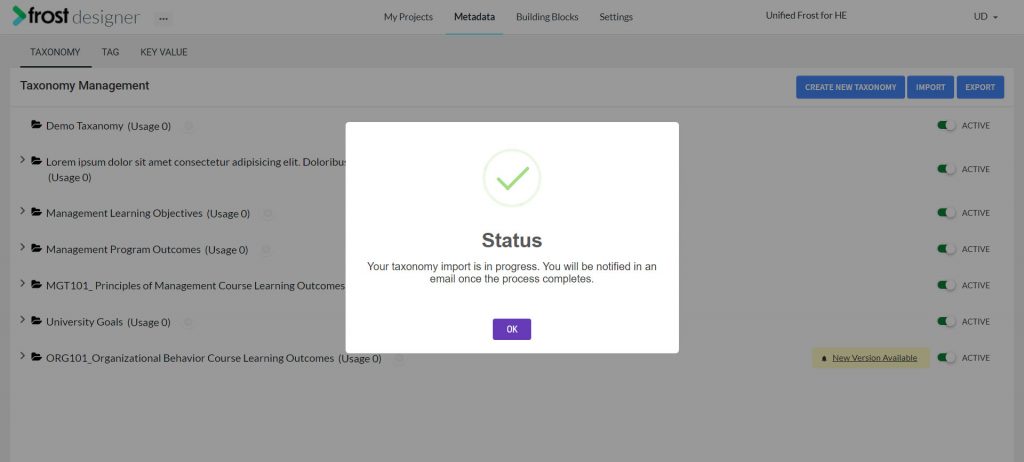
- A status notification will be displayed on successful import.
Note: In the CSV file, to extend the Taxonomy hierarchy for more levels you can add more columns. A total of 10 column hierarchical levels are supported.
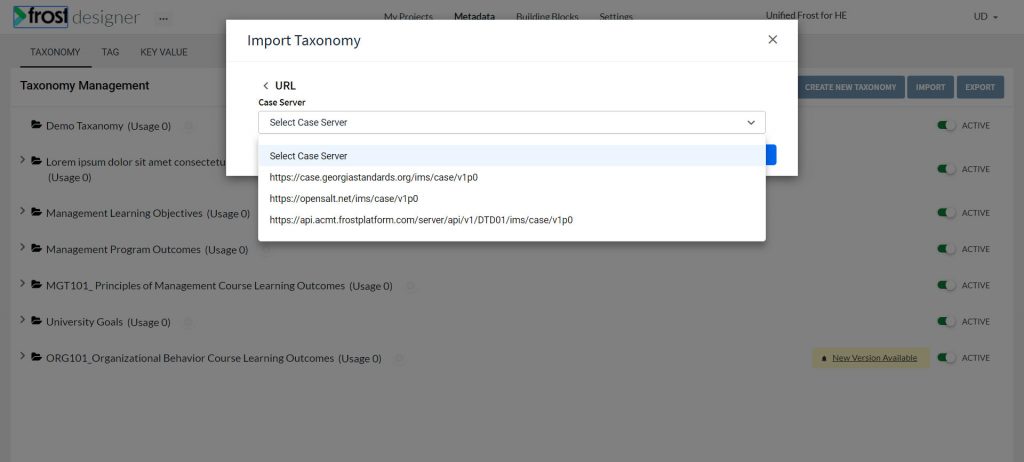
- To upload taxonomy using URL:
- Choose a Case server from where you want to import the taxonomy.
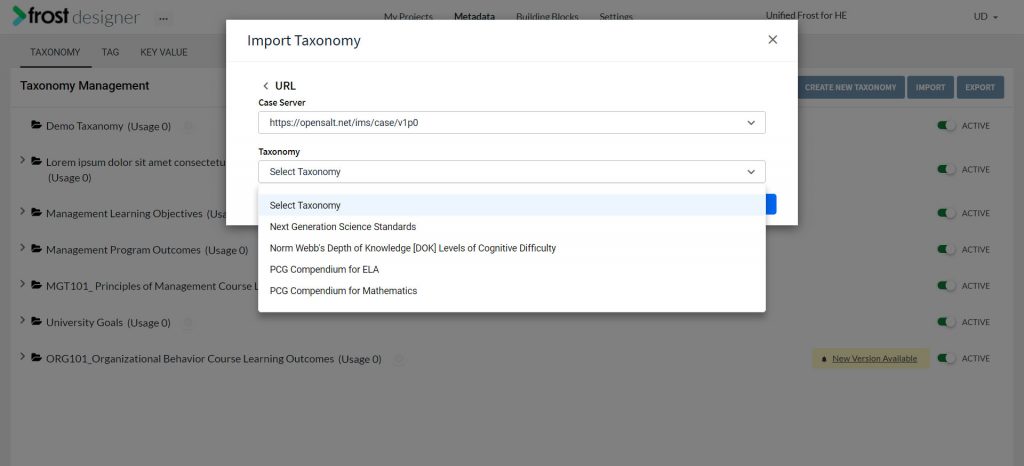
- Once selected, the taxonomies in that case server will be listed under the Select Taxonomy drop down.
- Choose the required taxonomy and click Import.
- Status notification will be displayed on successful import.
Note: Your organization’s CASE URL under the Taxonomy import from URL dialog box will be visible for importing Taxonomies from Standards only if the Standards platform is part of the Tenant(organization).