How to Update your Profile
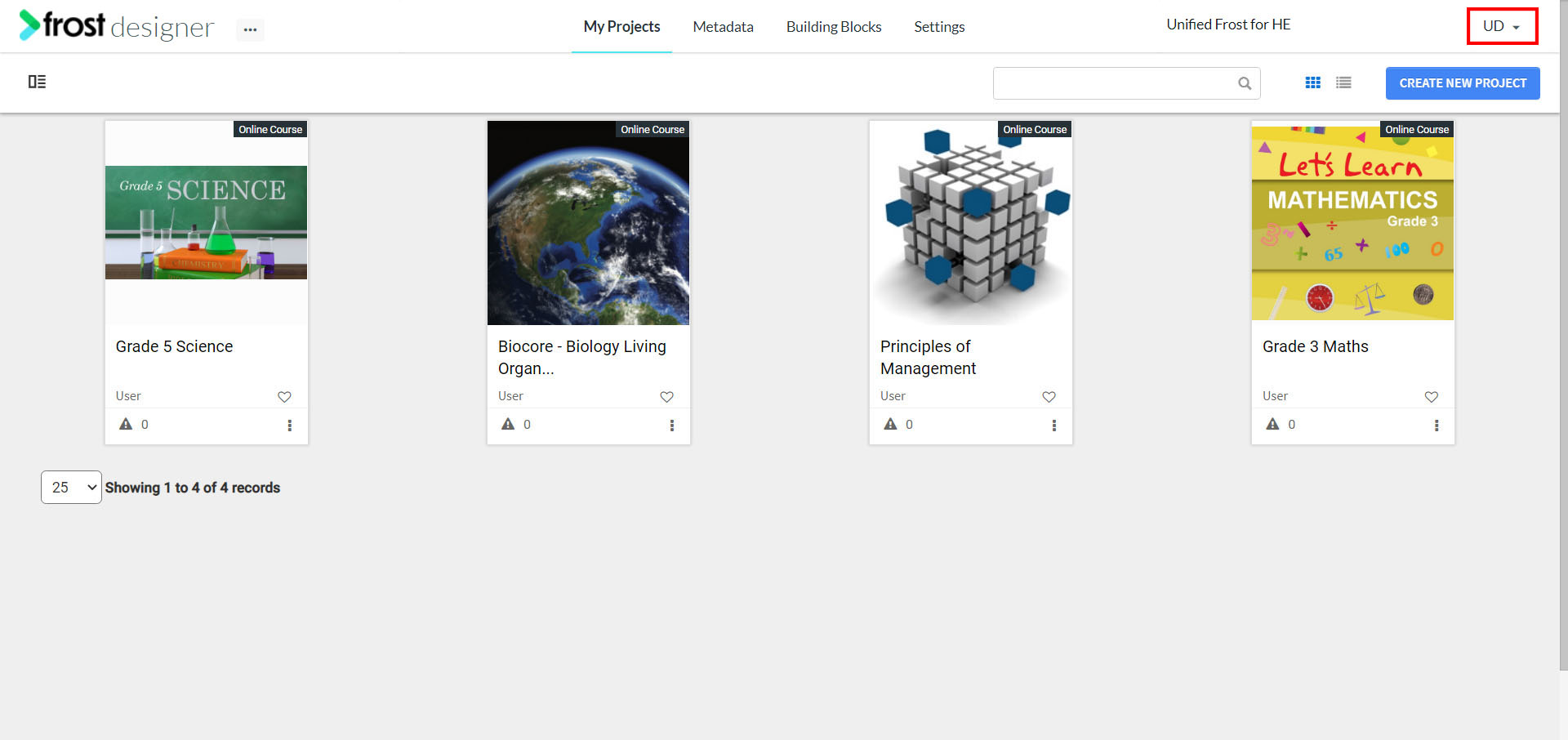
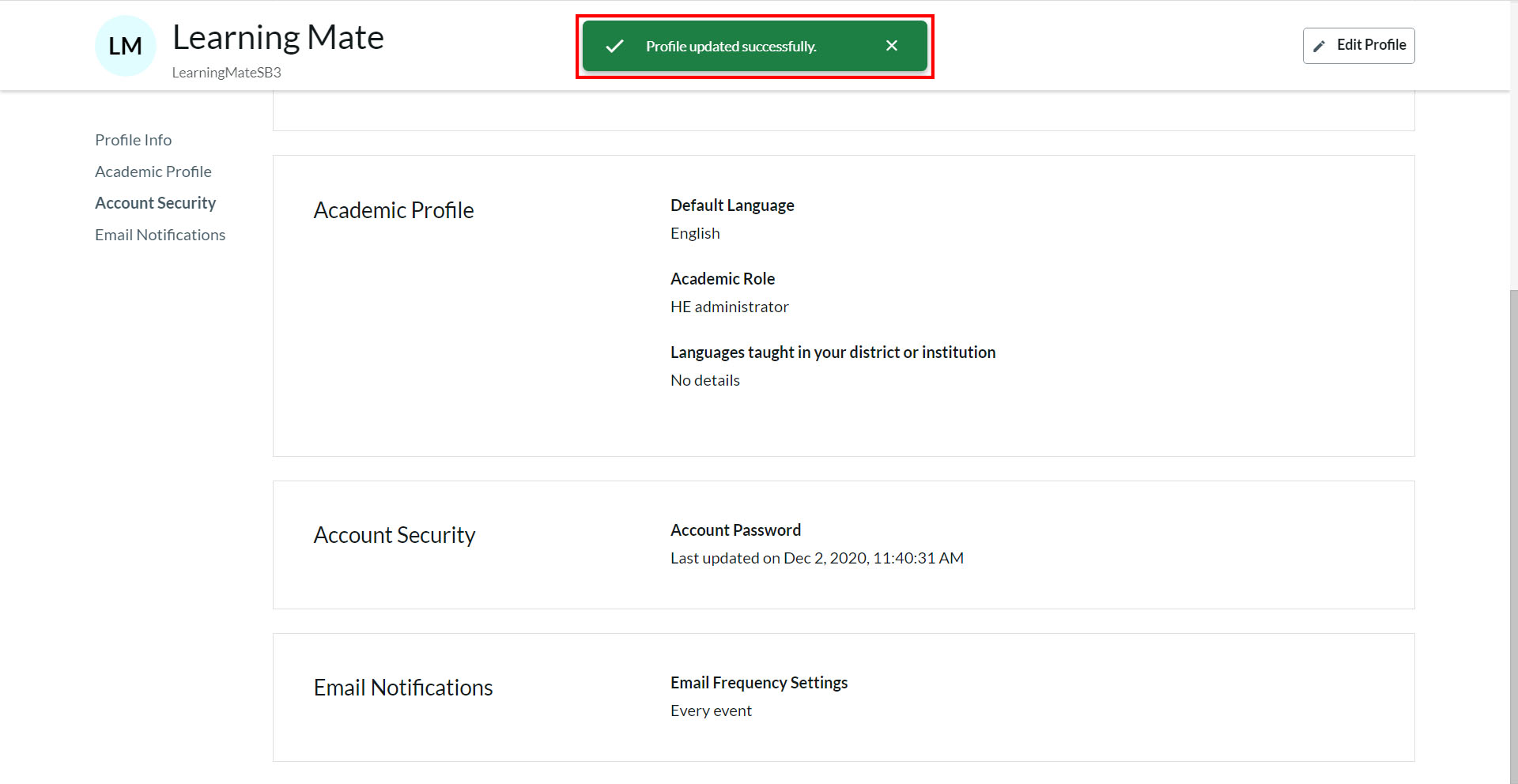
- After logging into Frost, click the drop-down next to the username on the top right corner of the screen.
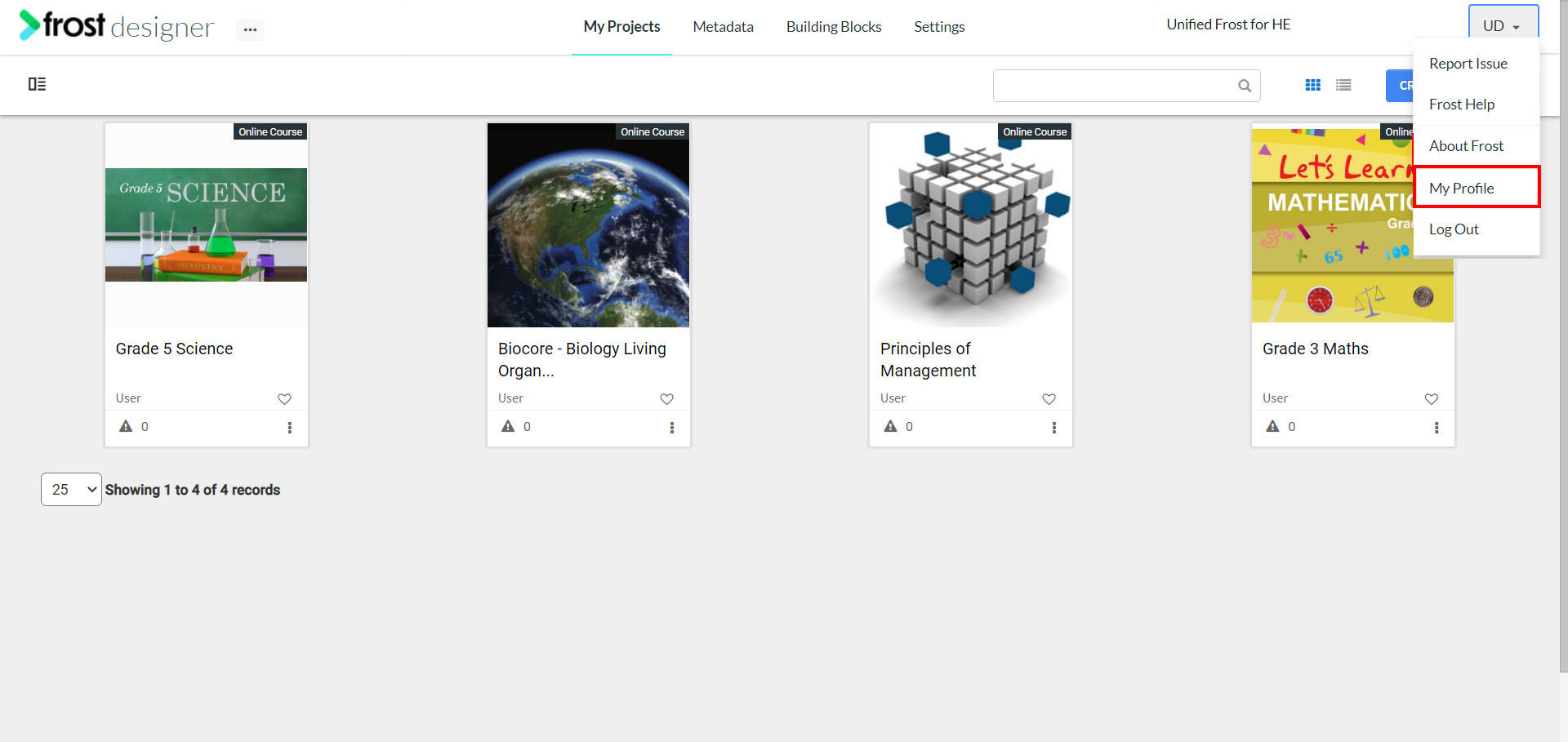
- Click My Profile.
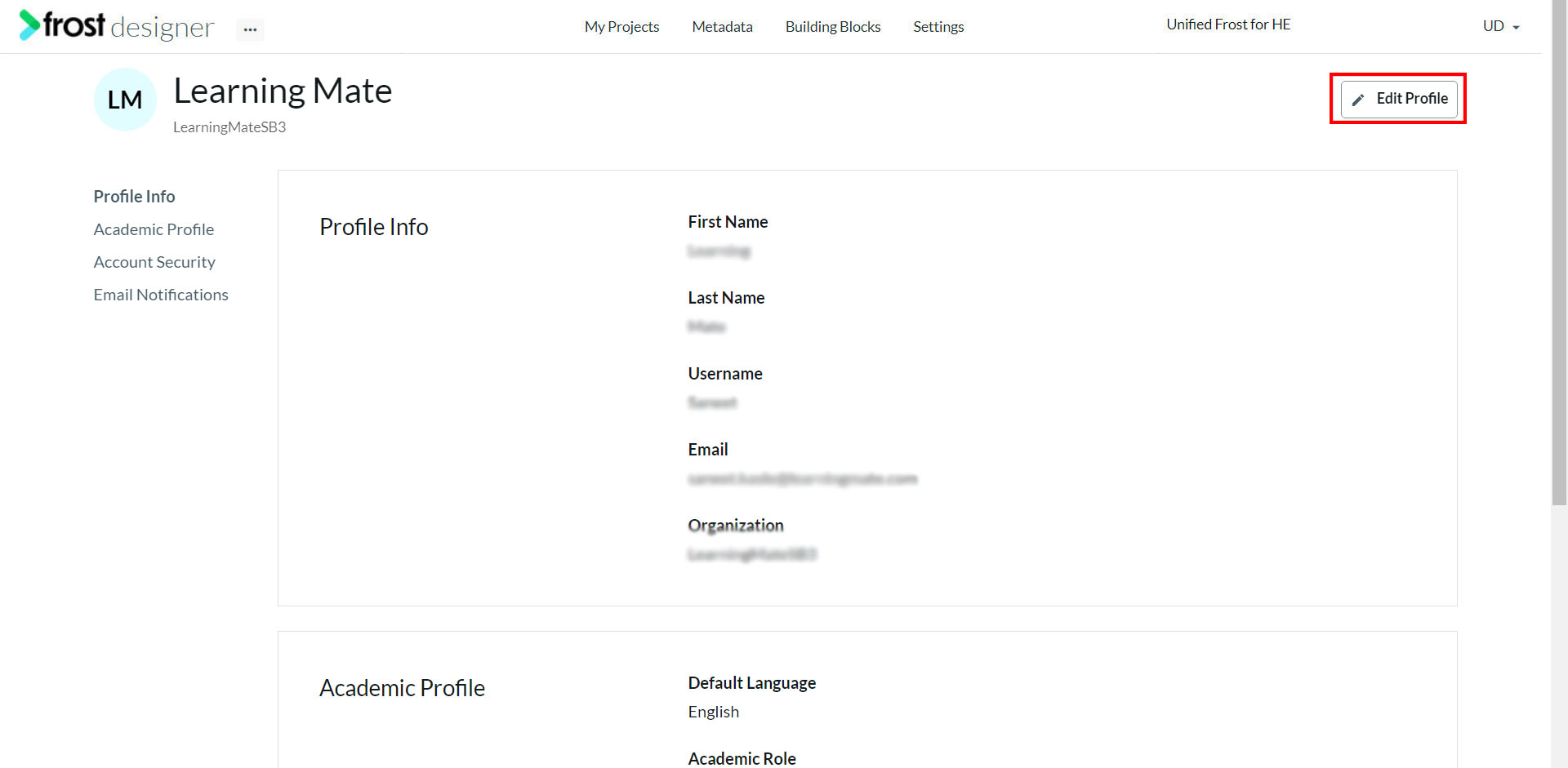
- To edit the profile click Edit Profile on the top right of the page.
Note: The Organization, Email ID, and Username cannot be edited.
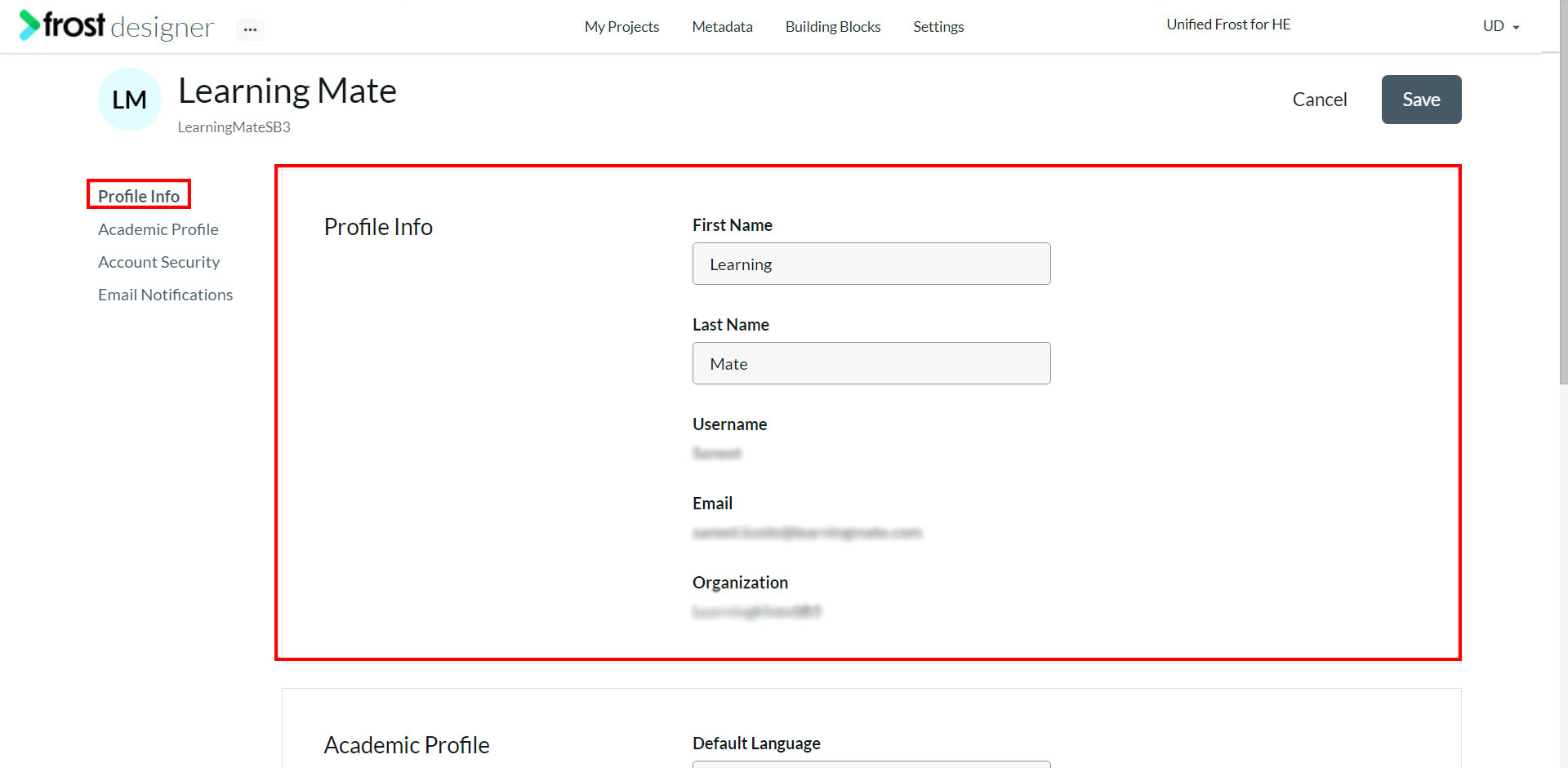
- Under the Profile Info section, you can edit the information that was added, including:
- First Name – the first name of the user
- Last Name – last name of the user
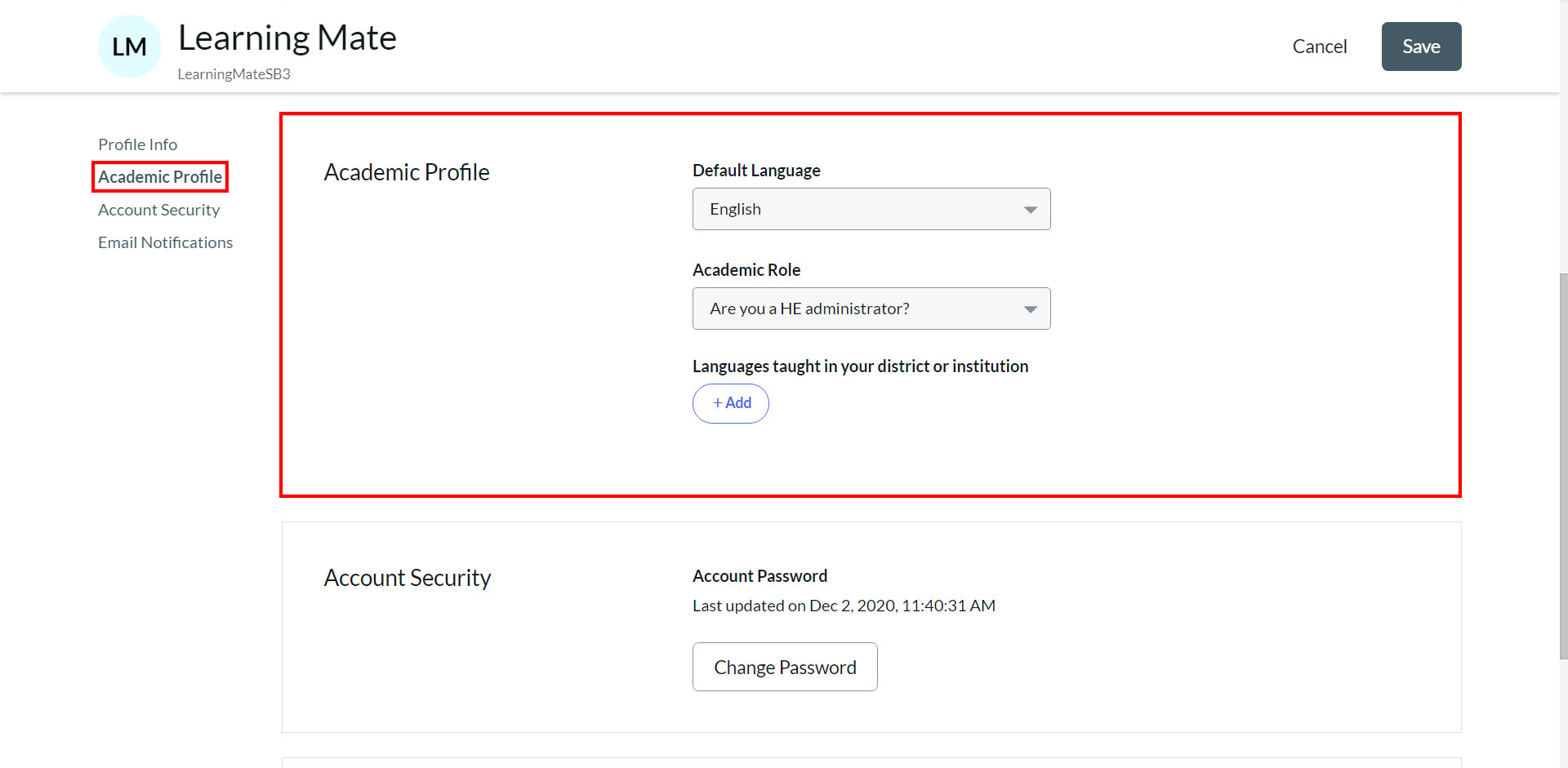
- Under the Academic Profile section, users can update the following details:
- Default Language
- Academic Role
- Languages taught in your district or institution
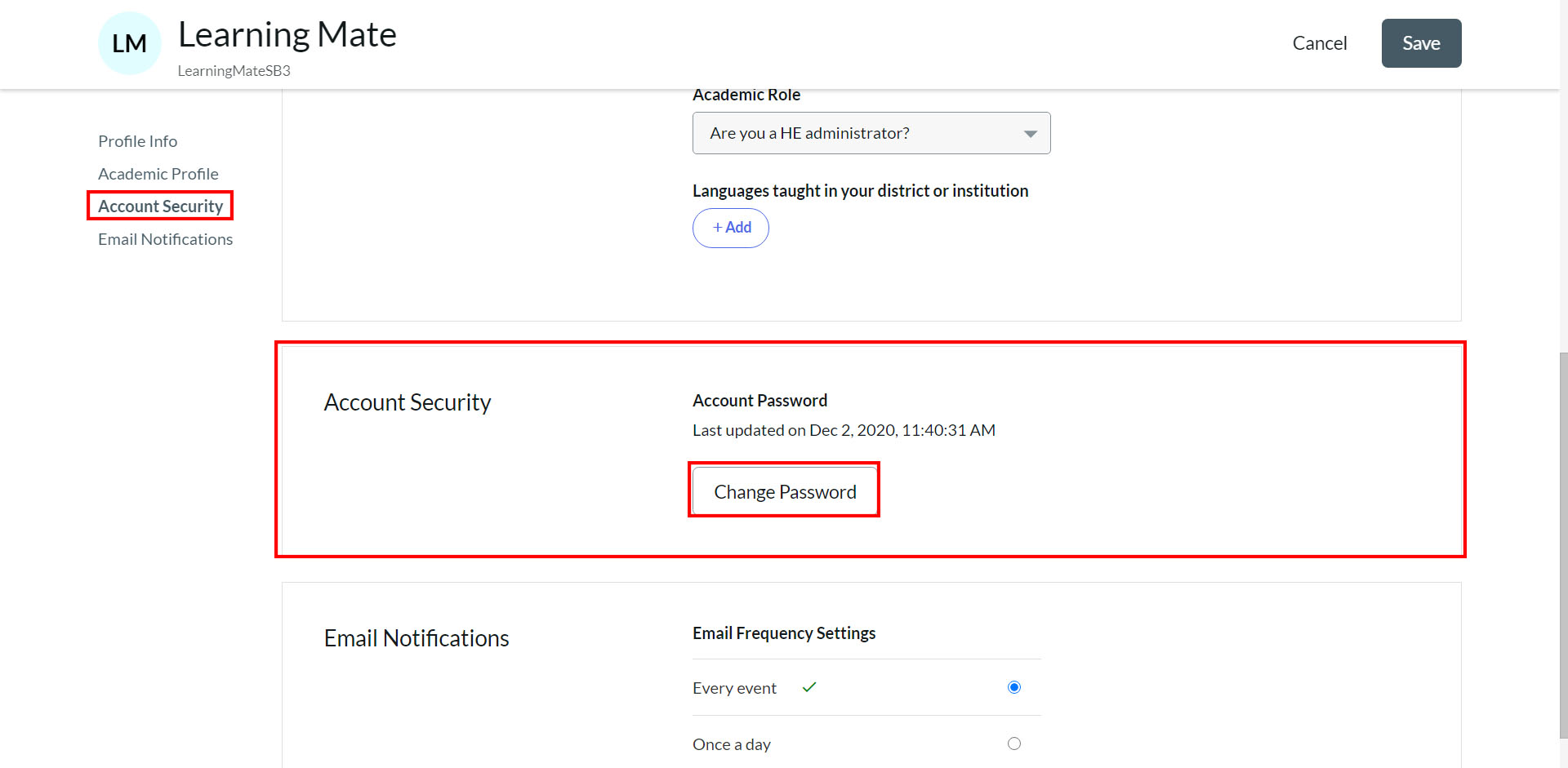
- Under the Account Security section, for changing the password click the Change Password button to enter the new password and confirm it.
Note: Once the password is changed, the user will be logged out of all logged-in instances and will need to log in with the new password.
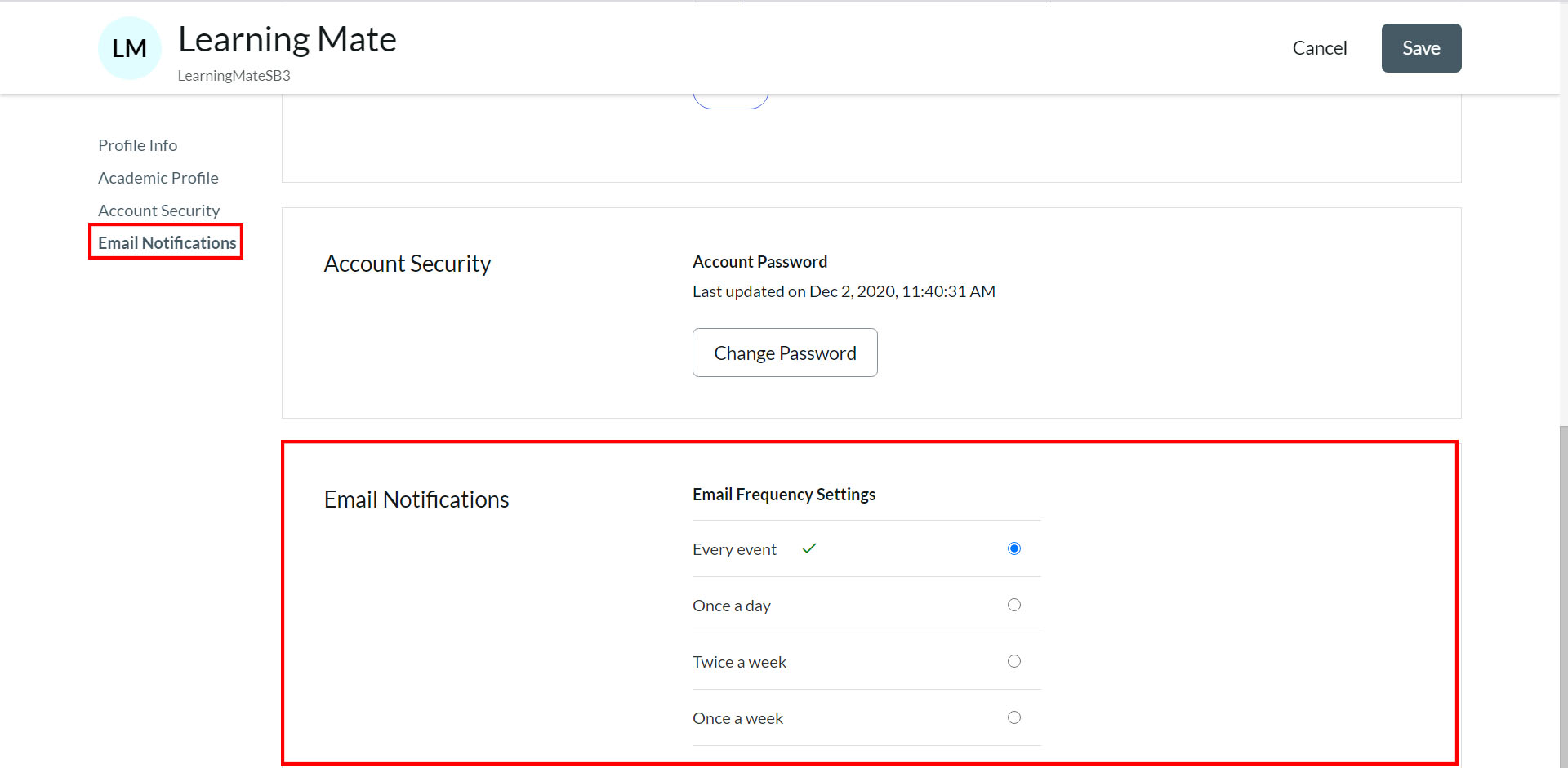
- Under the Email Notification section, you can change the frequency of emails.
- Automated mailers that can be controlled by frequency settings are:
- Project allocation to a user
- Import (completion of import)
- Export (completion of export)
- Duplicate of project
- Ticket/Issue assignment
- Comments on ticket
- Publish and Republish
- The frequency settings can be set to:
- Every event: an email is triggered for every action that the user performs. [list of actions covered above]
- Once a day: a single mail i.e. a daily recap mail is triggered at the end of 24 hours. It contains a summary of all actions performed in the last 24 hrs. [list of actions covered above]
- Twice a week: 2 mails are triggered in a week, with bi-weekly recaps of actions covered in the last 84 hrs.
- Once a week: 1 mail is triggered with a weekly recap, after 168 hrs.
Note: The number of hours takes into effect from the time the frequency is chosen. Users can change the setting at any time by selecting a frequency and clicking the Update button. By default, the frequency is set to “Every event”.
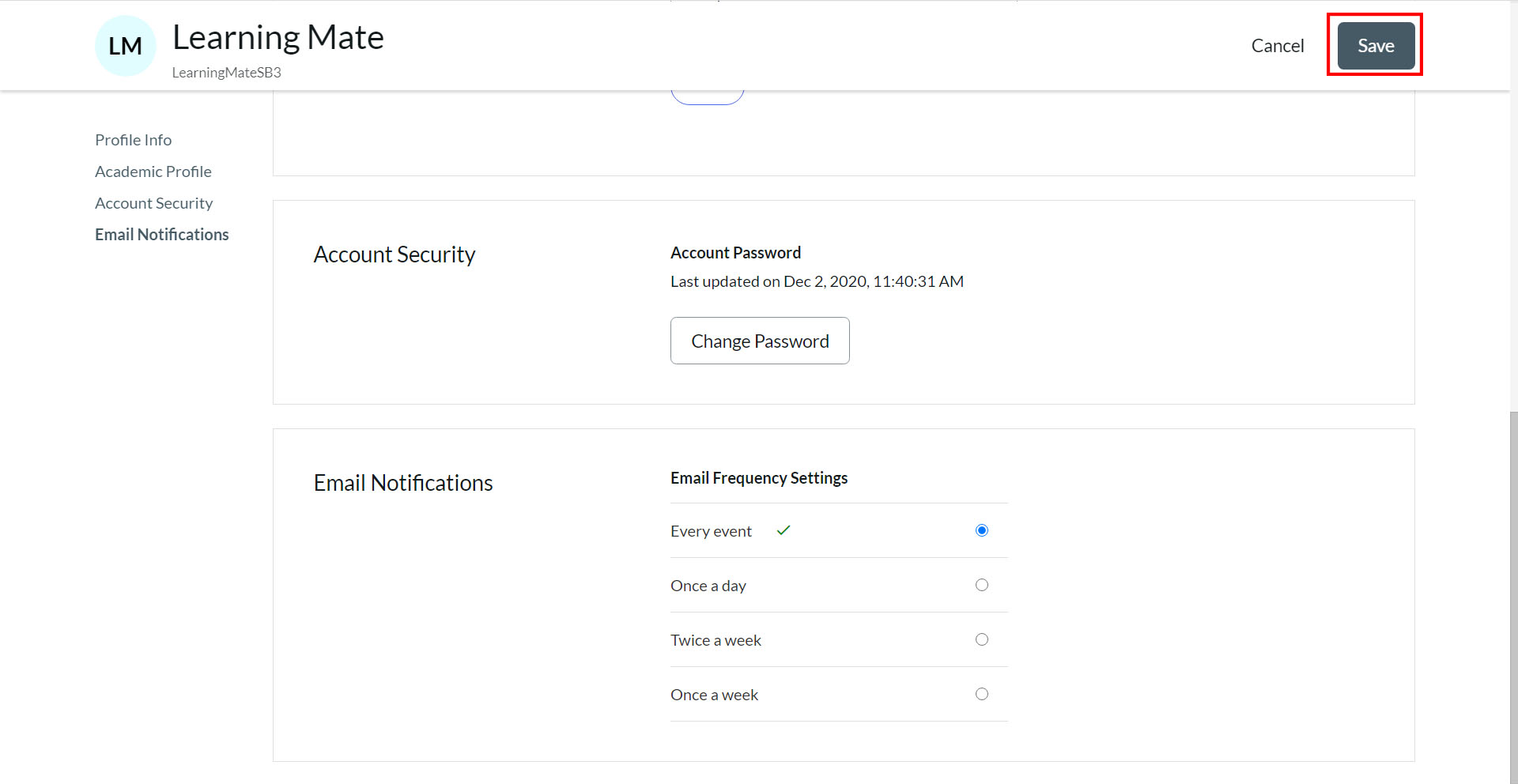
- Select the required frequency setting and click Save to update the profile.
- Once the profile is successfully updated, a notification will be displayed.
- Click Cancel to exit the page.