Adding Association Using Projects
How to add association using projects?
- Login to access the application. Home screen is displayed.
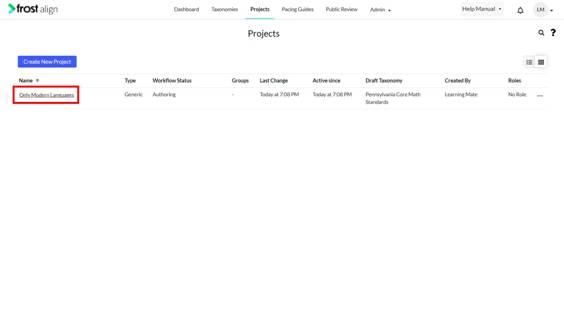
- From the top menu panel, click Projects. Select any project to work on. Users can add associations using two different methods.
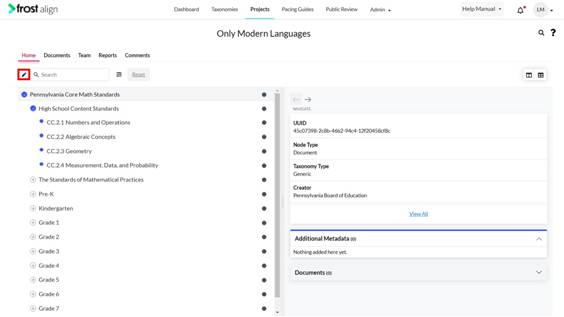
- Select the pencil icon.
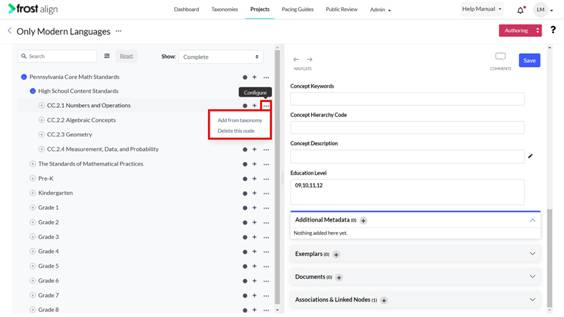
- Select the taxonomy.
- Select the ellipses to either Add from Taxonomy or Delete.
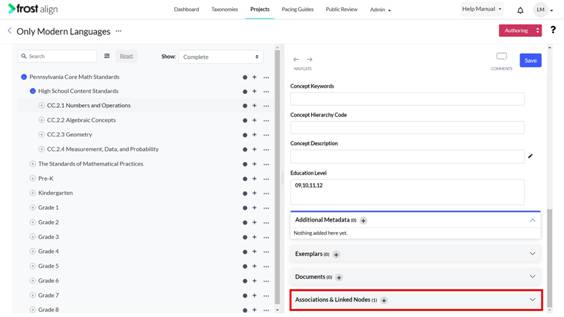
- Click the plus (+) sign next to Associations & Linked Nodes.
Note: Users can update the node display option to include a 3 dot option with the options to delete node and add from taxonomy. You can also select the option to add from taxonomy to be redirected to a screen.
- Fill the required details for the association.
- Once a Taxonomy and the Association Type is selected, nodes automatically get populated in the Select Nodes for Association list.
- Select the nodes and then click Add Association.
- To delete the node click the bin icon.
- Click Done to add the association(s) to the project.