Editing an Existing Project
How to edit an existing project?
- Login to access the application. Home screen is displayed.
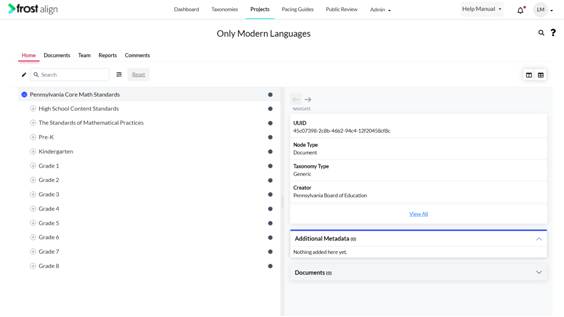
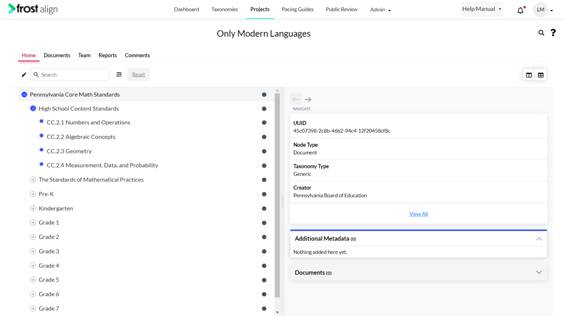
- From the top menu panel, click Projects. Select any project to work on. The project page appears. The main nodes of the taxonomy are displayed as Detail View.
- To check the elements under the selected node, click the plus (+) sign.
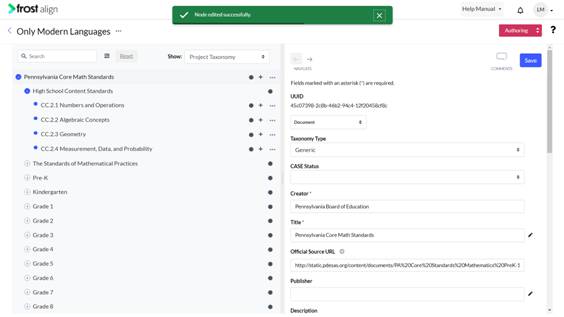
- To edit any project, select the pencil icon.
- Click the main node. In this case, ELA Grade 2.
- Click the + sign to expand the first brand node.
- On the panel, next to the nodes, notice the Concept Keywords box.
- Fill up the metadata fields.
Note:
- Users can edit the metadata and values like Course, Standard, etc. to define their own Taxonomy Type.
- The Taxonomy type metadata is added to the Document node type, and can be later edited in the Project.
- Fill up the metadata fields.
- You can add concept keywords for a node (item type).
- The Concept Title, Concept Hierarchy Code, and Concept Description no longer exist on interface and the CASE JSON file.
- To save the details, click Save. A confirmation pop-up appears.