Adding Taxonomy Versions
How does the taxonomy version appear?
- The update button is visible when you make edits to the taxonomy. Prior to that the update button is not visible.
- If there is a version update for a subscribed taxonomy and is associated to a project, then a confirmation pop-up appears.
- You can click Yes to update the project and taxonomy. Click No to cancel the update.
Note:
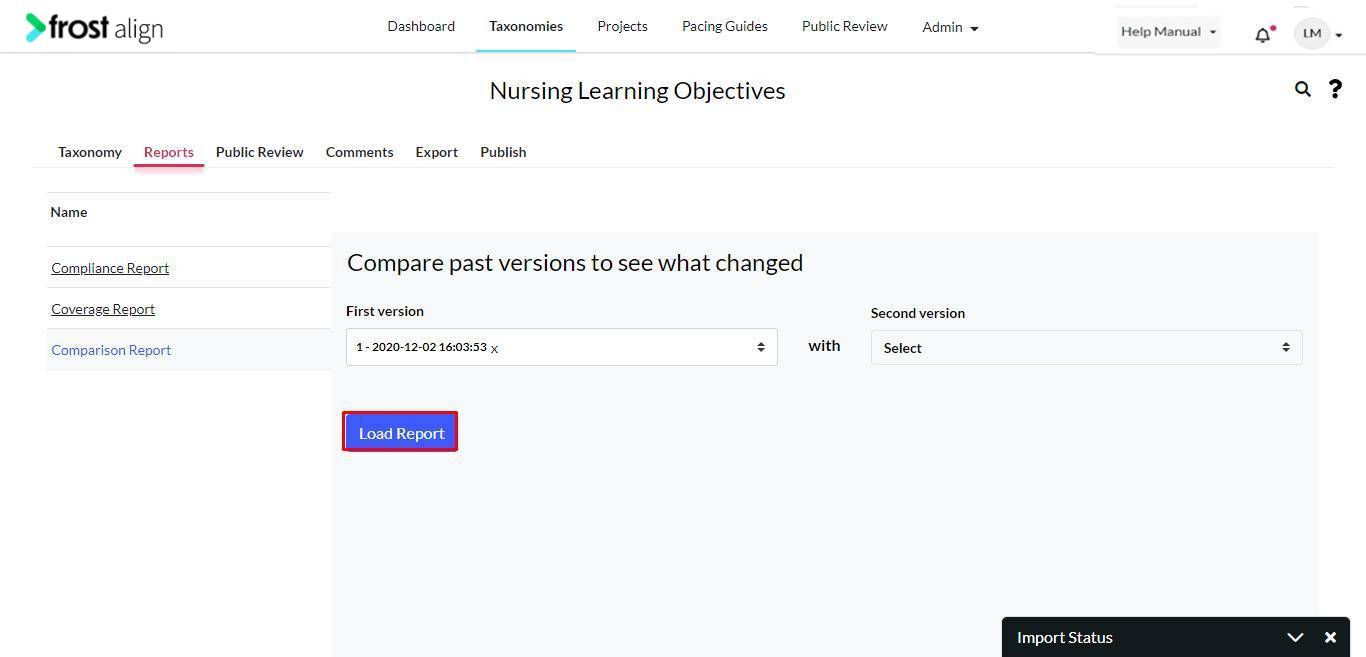
- You can view and compare the published versions of your subscribed taxonomies. When a new/updated version of the subscribed taxonomy is available, you will get an in-app notification, as well as via your registered email.
- You can choose to update your subscribed taxonomy with the latest published version. You will receive notifications via in-app and email once the update is completed.
- There is no roll back to the previous version once updated. It is recommended that you compare the taxonomy versions before updating it.
- When you’re updating a taxonomy with a new version, and if that taxonomy has an active project, then user will not be able to update the taxonomy.