Exporting a CSV File
How to export a CSV file?
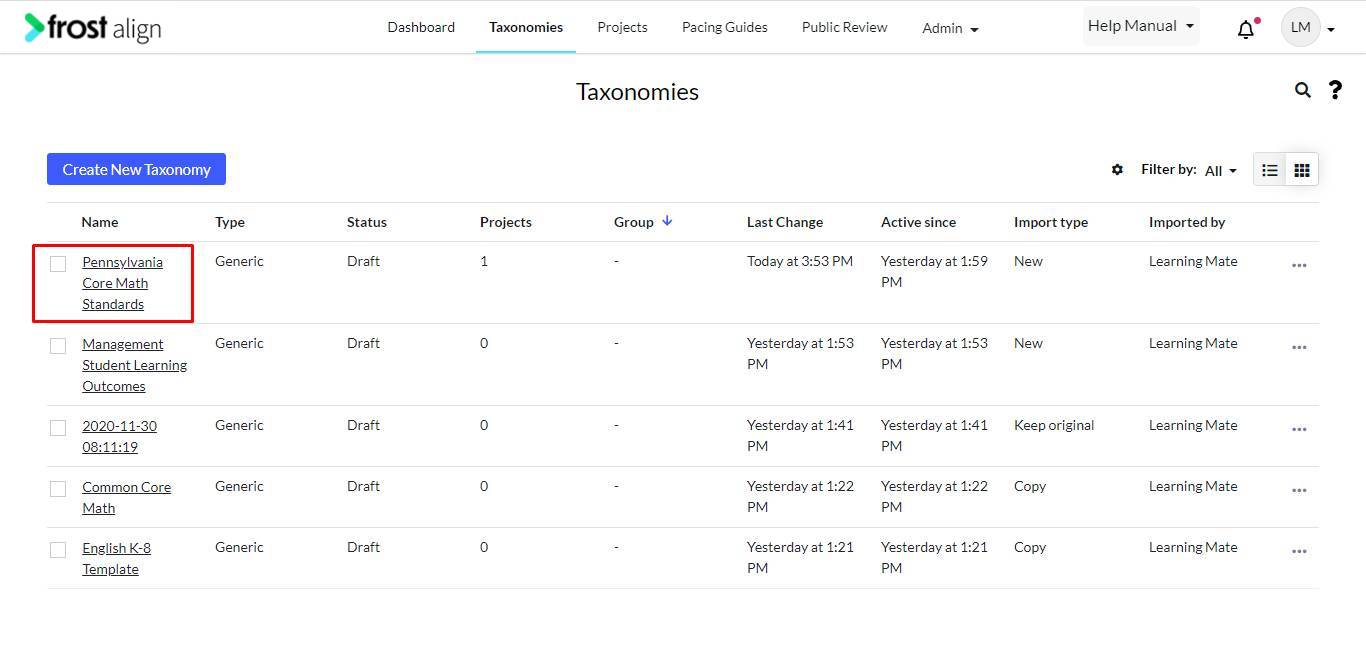
- On the home page, from the Admin panel on the top, select Taxonomy.
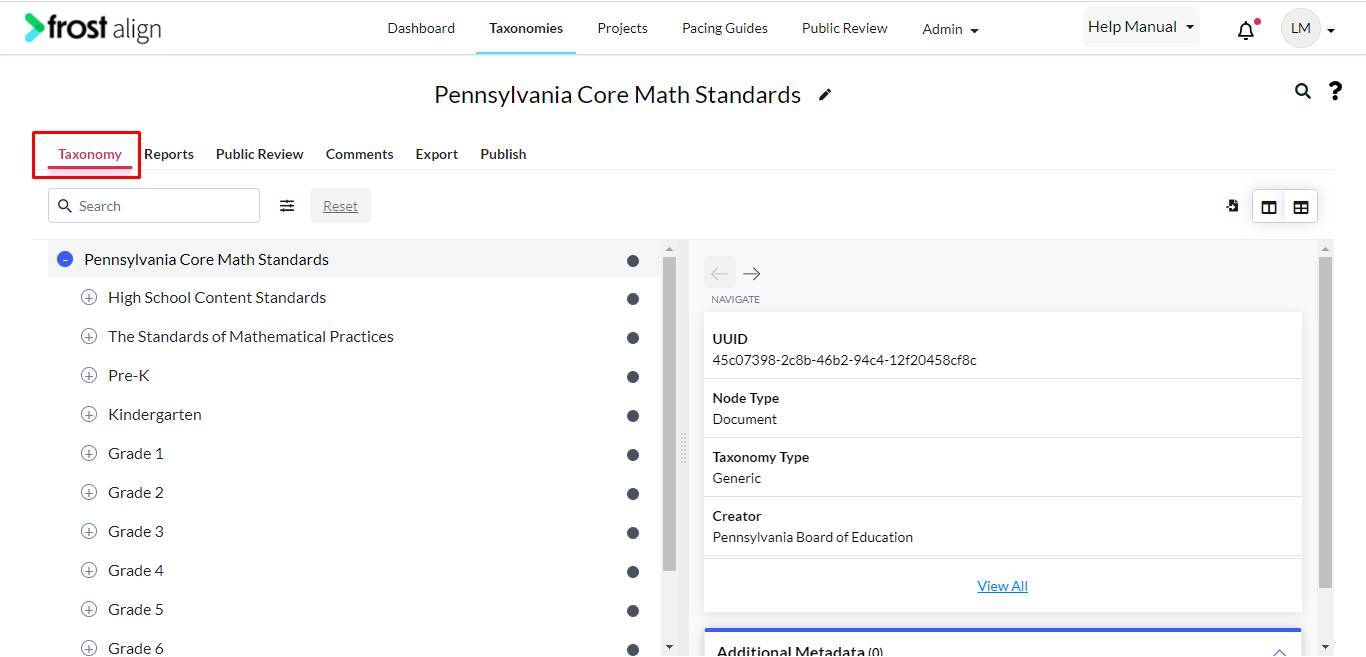
- From the Taxonomy listing page, select a taxonomy.
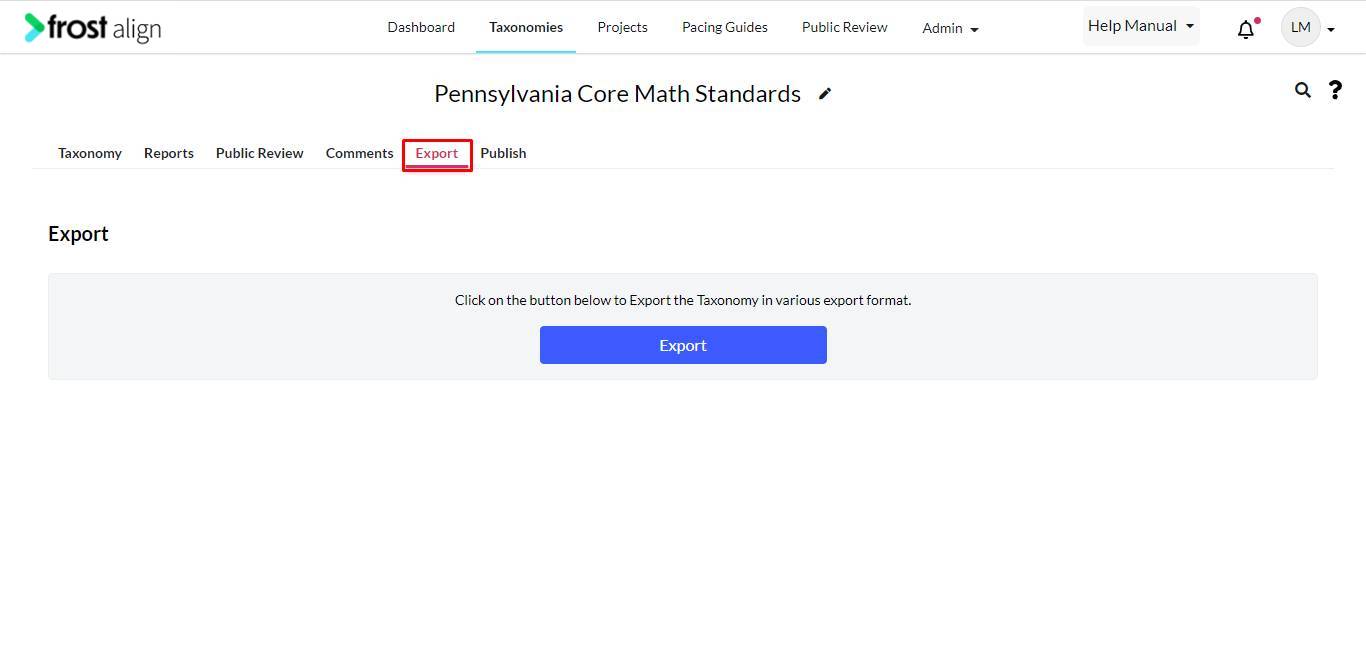
- Select the Export tab.
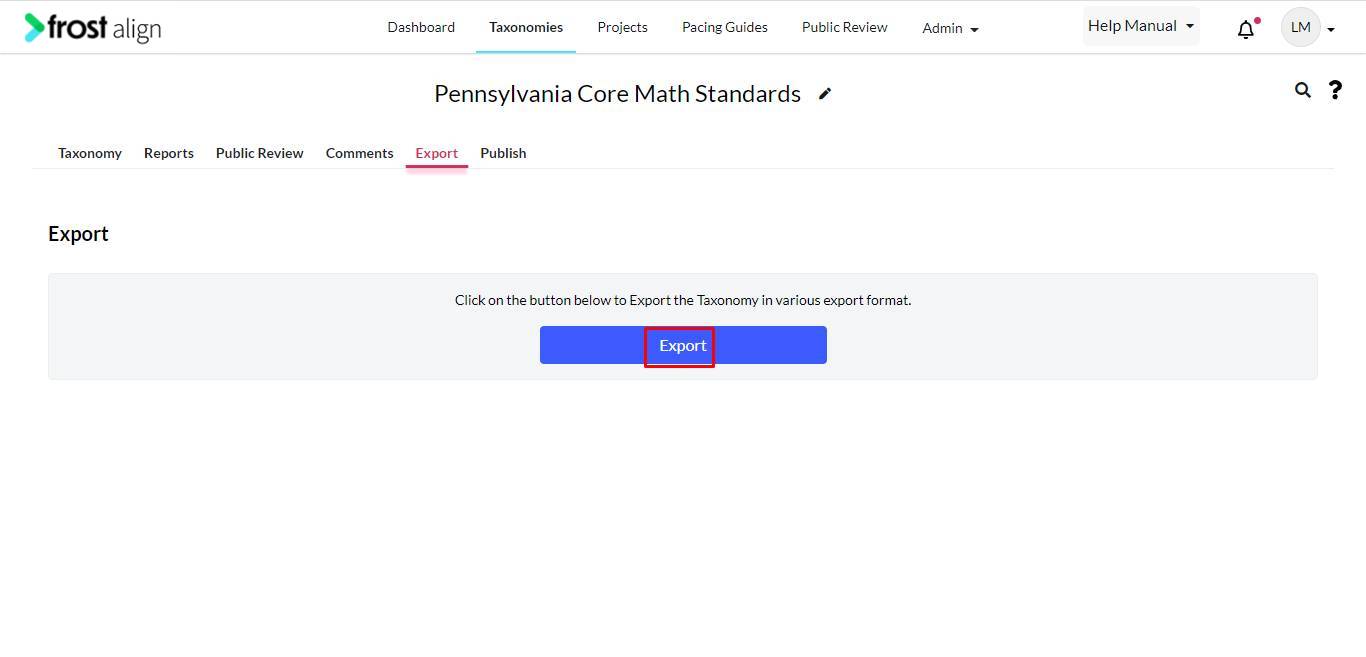
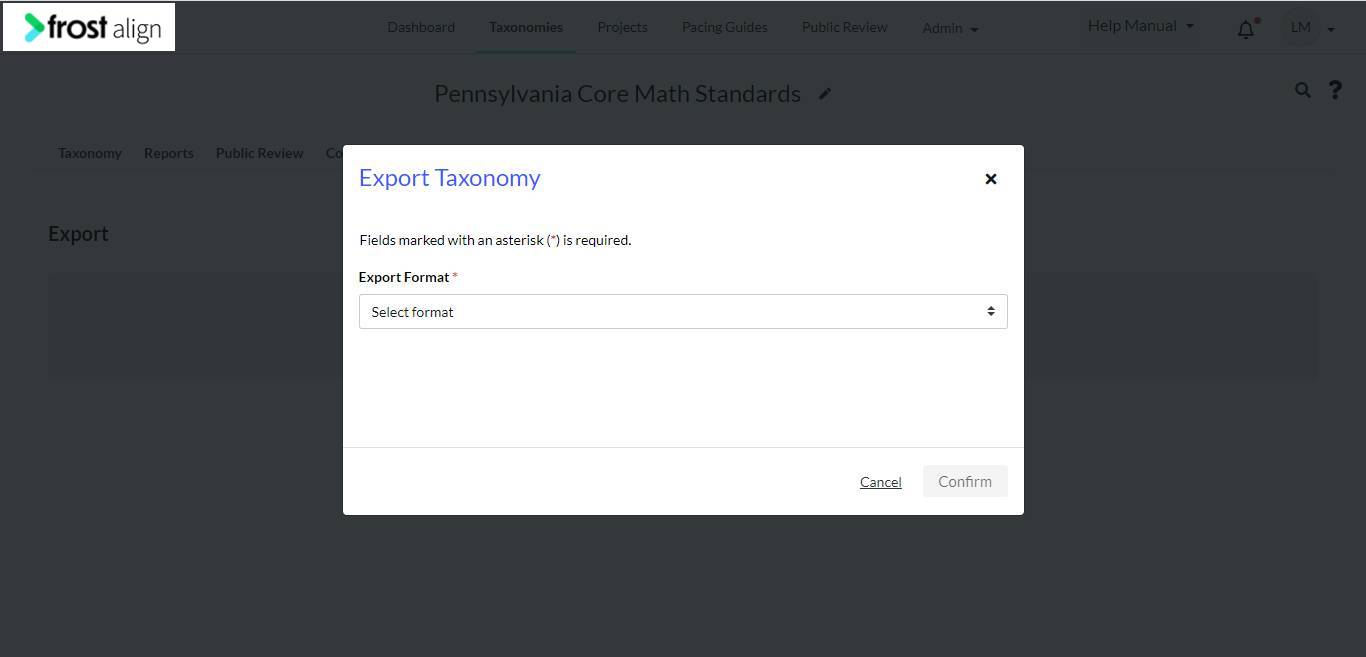
- To export the taxonomy, select Export.
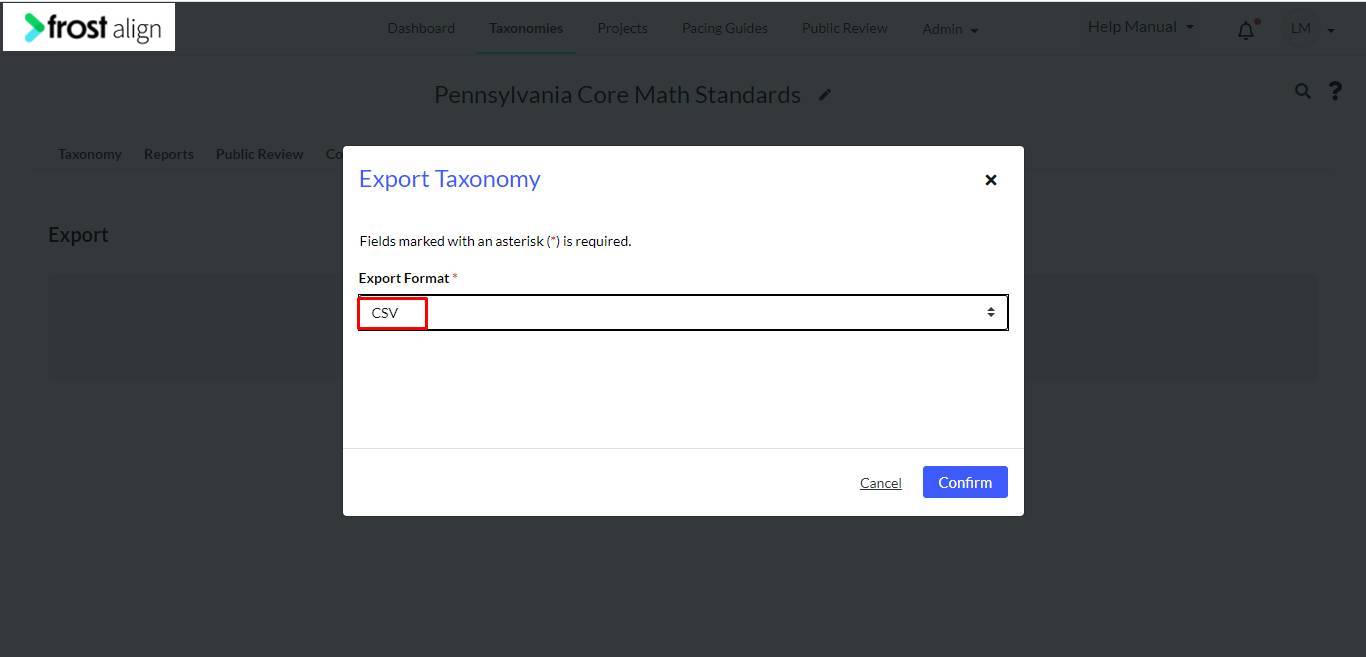
- The Export Taxonomy pop-up appears. From the Export Format * drop-down, select CSV.
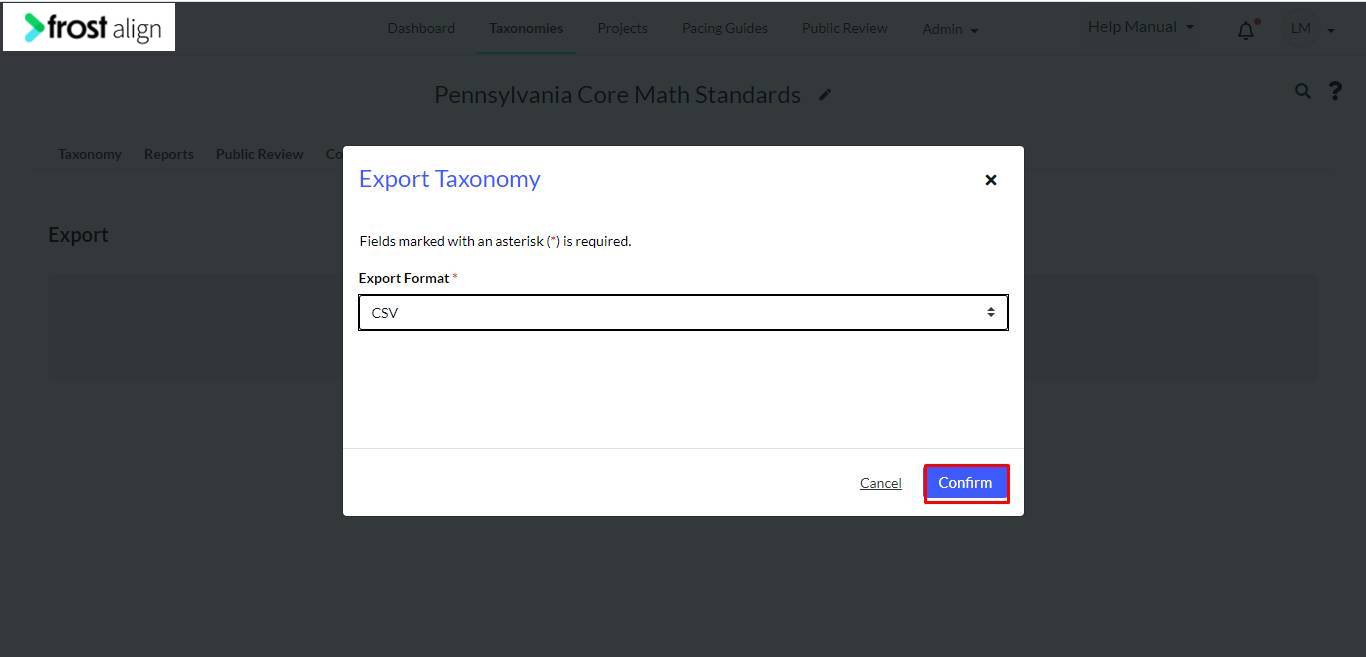
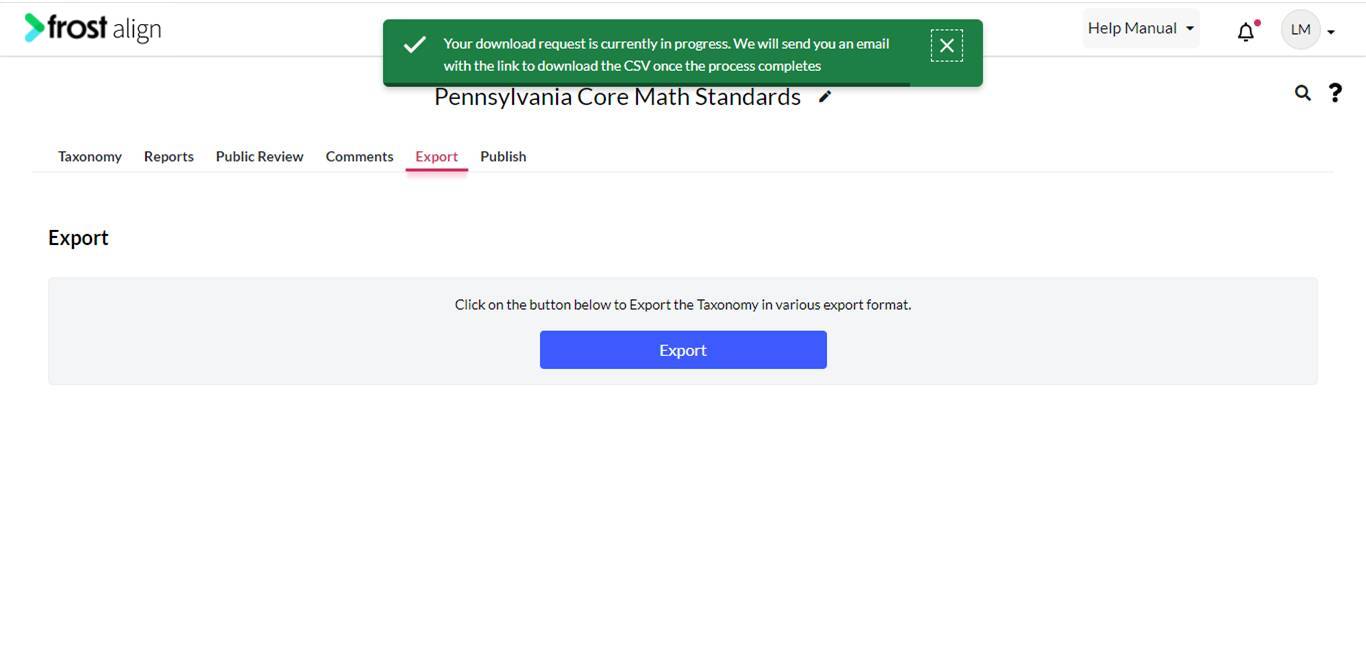
- To continue exporting, select Confirm. Alternatively, select Cancel. The .csv file is downloaded, and ready to be worked on. Open the CSV file. Save a copy.
Note: Users can add associations via CSV using the case_association_type column.
- Let’s look at the following steps to understand better.
- In the new row, add a node_id of existing taxonomy node, add parent/destination_node_id of existing taxonomy or from any other taxonomy.
- Add or use the case_association_type column and mention the CASE association type relation which you want to create like exactMatchOf.
- For the Action column, users can add or delete or update a node or association via CSV for an existing taxonomy by just adding the action.
- Fill the first column with Header as action in the excel sheet.
Note: Mention Add or a to add a node, update or U to update an existing node, blank to add or update an existing node, and delete or d to remove a node. Words or letters are not case sensitive.