Uploading a CASE JSON File From the Desktop
How to upload a CASE JSON file from the desktop?
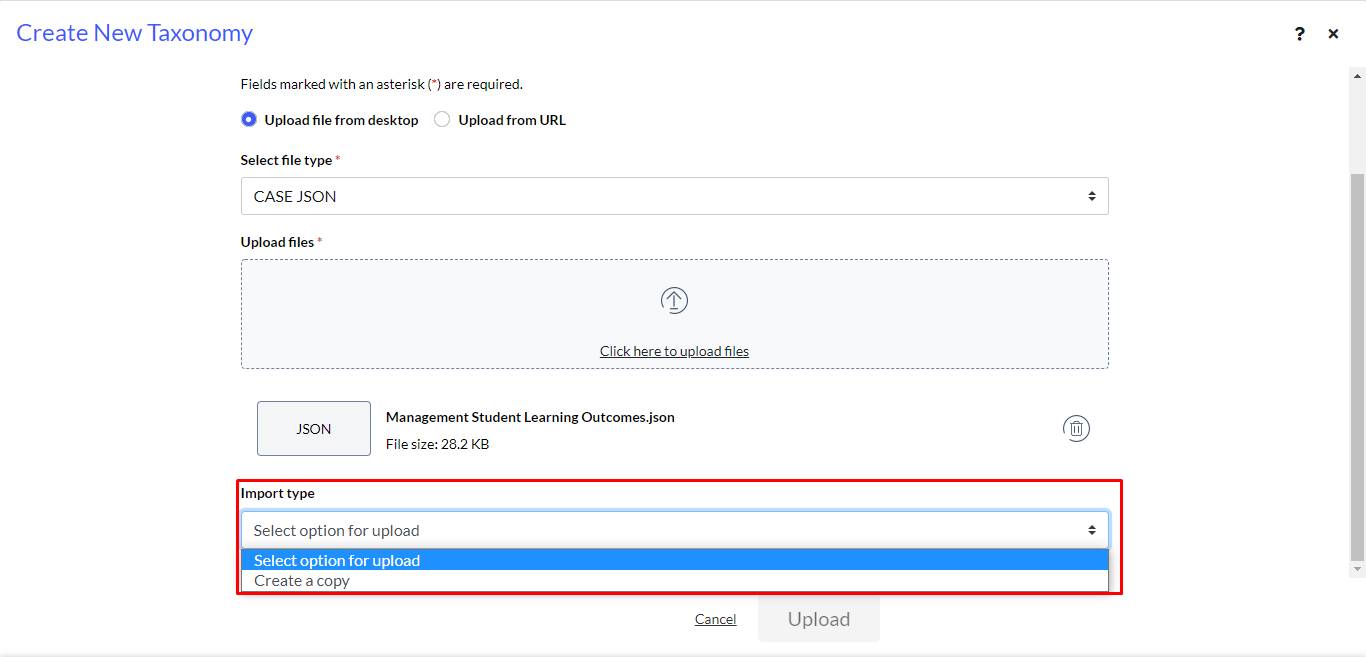
- Select Upload file from desktop to import files from desktop.
- From the Select file type drop-down, click Select file type.
- Select CASE JSON from the file type list.
- Select Click here to upload files to upload the file.
Note: The uploaded JSON file appears along with the file size. To delete the file, use the bin icon displayed next to the uploaded file.
- Select the Import Type drop-down list. The drop-down list has three options.
- Drop-down Option 1: Import with no changes: This option is used to create a local copy of a reference taxonomy. Select this option for taxonomies GUID, identifier and URI to be retained. When this taxonomy is exported, the original GUID, identifier and URI is exported.
Note: A taxonomy imported with this option cannot be edited in Frost Align. This taxonomy cannot be used to create a project.
- Drop-down Option 2: Create a copy: Select this option for all new GUIDs, identifiers and URIs to be created for the nodes in this taxonomy. An exact Match Of association is created for every node linking to the original GUIDs/URIs. If the taxonomy was previously imported with any of the options and then re-imported, the taxonomy only creates a copy option that is displayed in the Import Type field.
- Drop-down Option 3: Import and update URIs to the current server: Select this option, the original GUID, identifier is uploaded however, the URI is updated to point to Frost Align. This is for the situation when you want Frost Align to take-over the hosting of the taxonomy.
- Select Cancel to cancel ongoing uploads.
- Once the Import type is selected, the upload button gets enabled. Click Upload. The taxonomy is uploaded successfully, and the Continue button gets enabled.
- Click Continue.
Note:
- For taxonomies over 2 MB, you receive the following review message.
- For taxonomies upto 2 MB in size, a review screen displays the summary of imported taxonomy.
- Click Finish to confirm the upload, and view the created taxonomy.